Resize VM (Upgrade/Downgrade CPU & RAM)
Resizing a virtual machine (VM) means changing its Flavor — the combination of vCPU and RAM (see Flavor Selection Guidelines). You can upgrade to handle more load, or downgrade to reduce cost when a workload no longer needs the resources.
Vietnix Cloud supports two ways to change CPU and RAM:
- Hot Plug resize – change CPU/RAM while the VM keeps running, without downtime.
- Cold resize – shut down the VM, change the flavor, then power it on again.
Prerequisites
- An active Vietnix Cloud account with access to the project.
- The project has enough available resources (CPU, RAM) for the target flavor when upgrading.
- The VM is in a healthy state and you have a recent snapshot or backup (especially before a downgrade).
Always create a snapshot or backup before resizing. A downgrade can leave the guest OS without enough resources to boot if the installed software still requires the old capacity.
Method 1: Hot Plug resize (no downtime)
CPU and RAM Hot Plug must be enabled when the VM is created (under Advanced Options). If it is enabled, you can change CPU/RAM while the VM is running.
-
Login to Vietnix Cloud Dashboard
-
Navigate to Compute > Virtual Machines
-
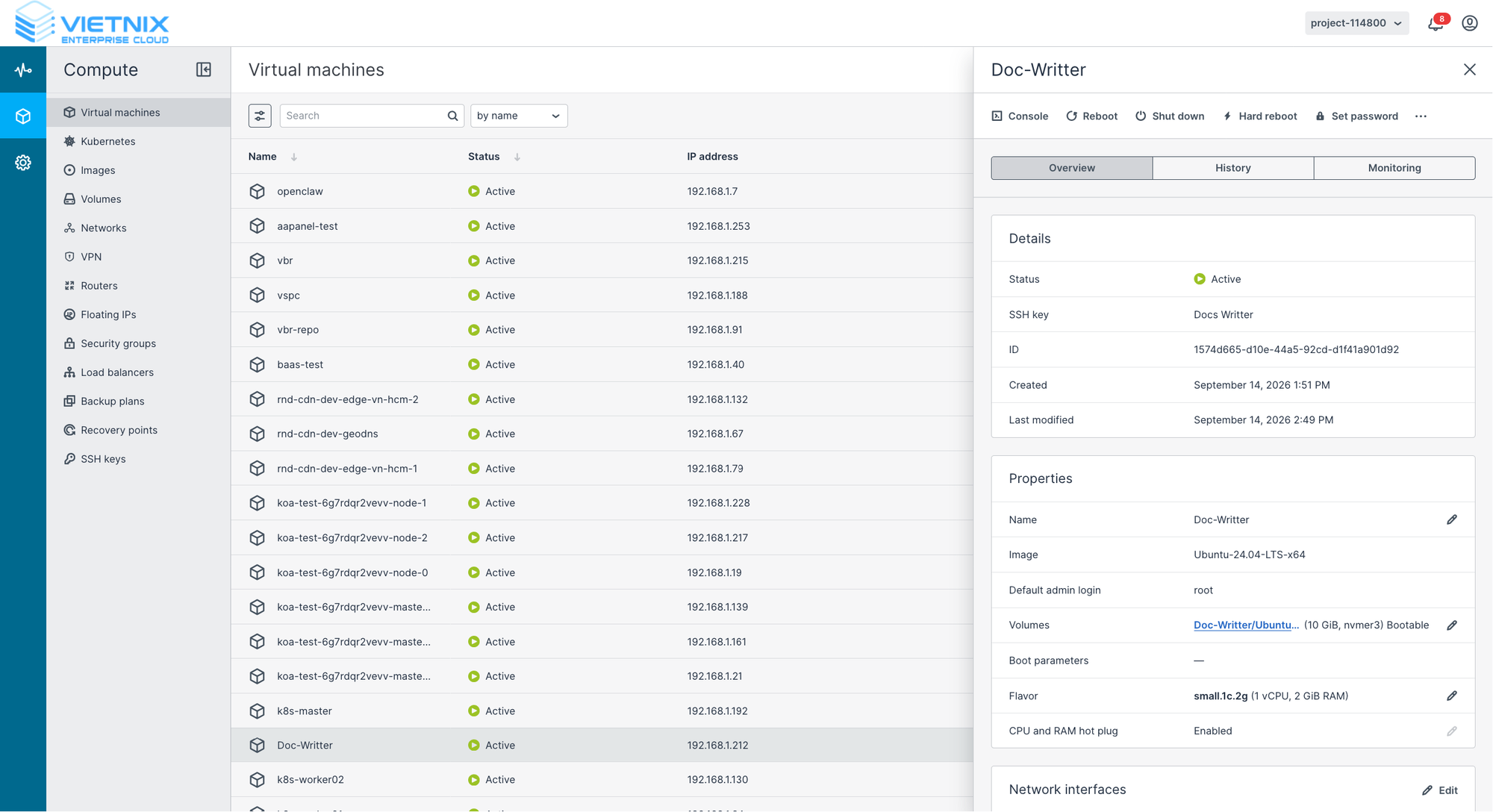
Select the VM you want to resize
-
On the VM's Overview tab, click the edit (pencil) icon next to Flavor (or open the ... actions menu and choose Resize / Change Flavor)
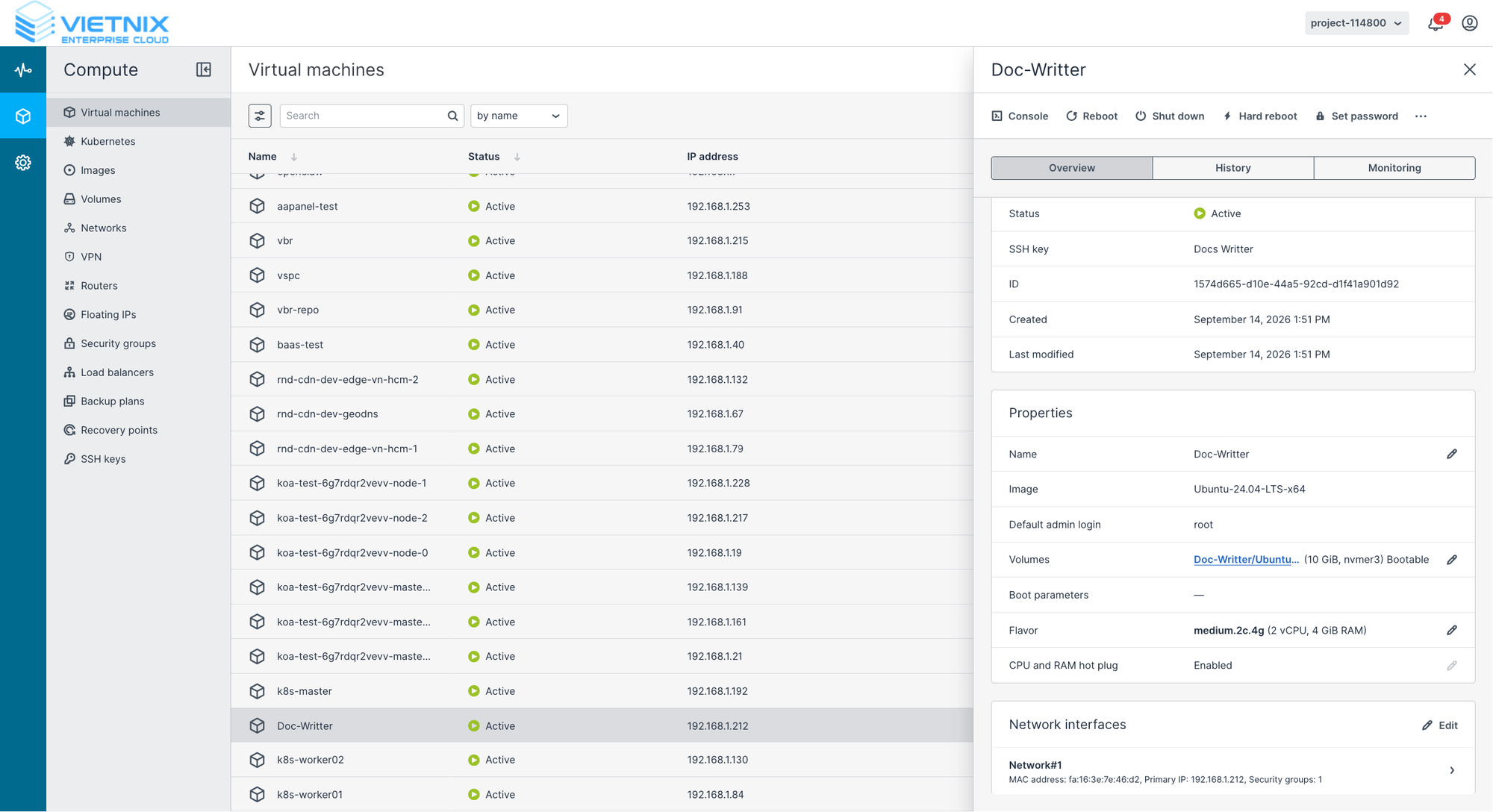
-
In the Flavor dialog, review the warning, use Search or Filter by placements if needed, then select the target flavor from the Available flavors list
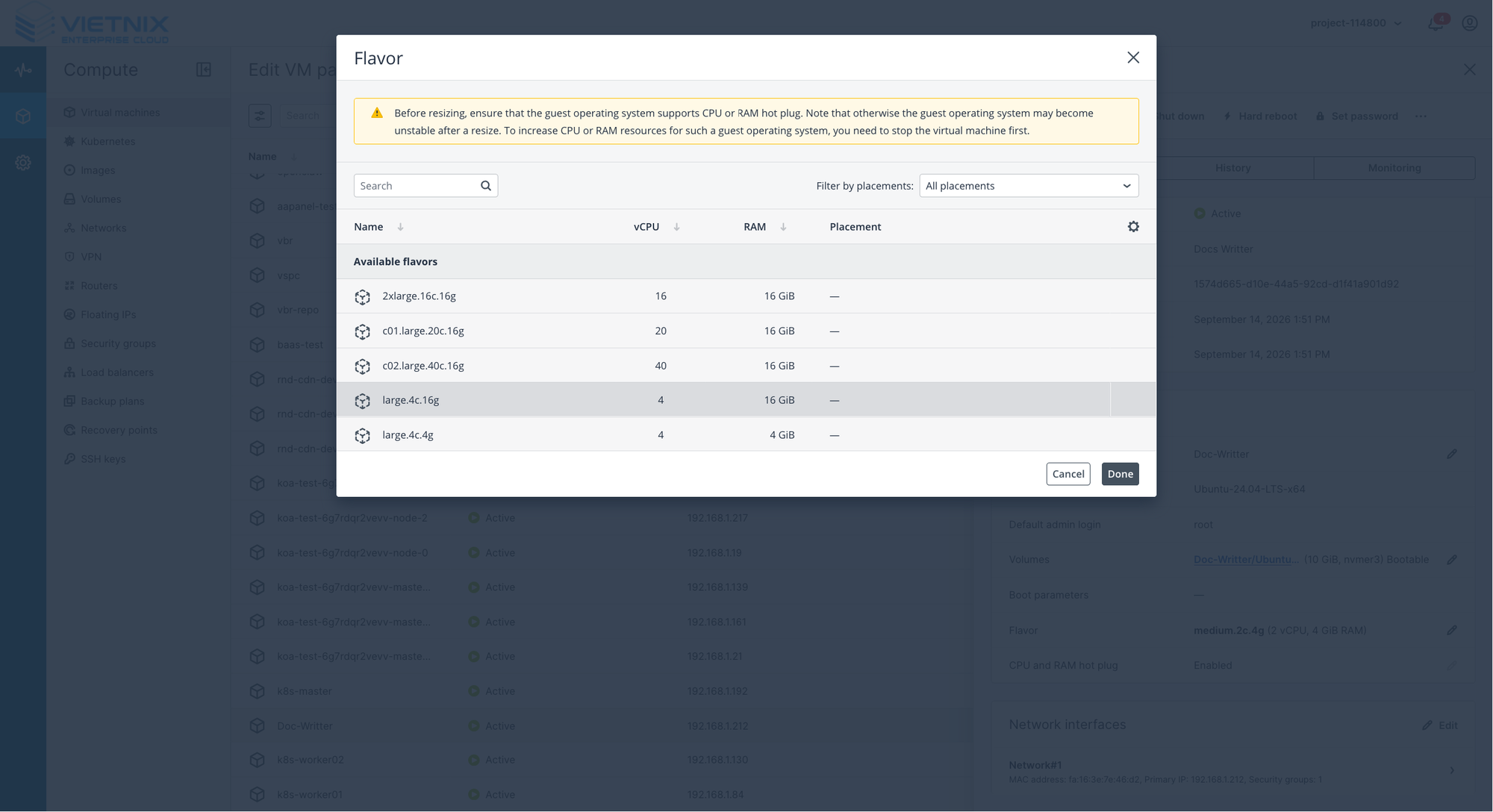
The list is split into two groups:
- Available flavors – the flavor can be applied to the running VM via Hot Plug. Select one of these.
- Unavailable flavors – the flavor cannot be applied without shutting down (for example it would change the disk size, or it is not compatible with Hot Plug). To use one, follow Method 2 instead.
-
Review the new configuration and click Done
-
The VM status changes to Resize while the change is applied in the background — the VM keeps running
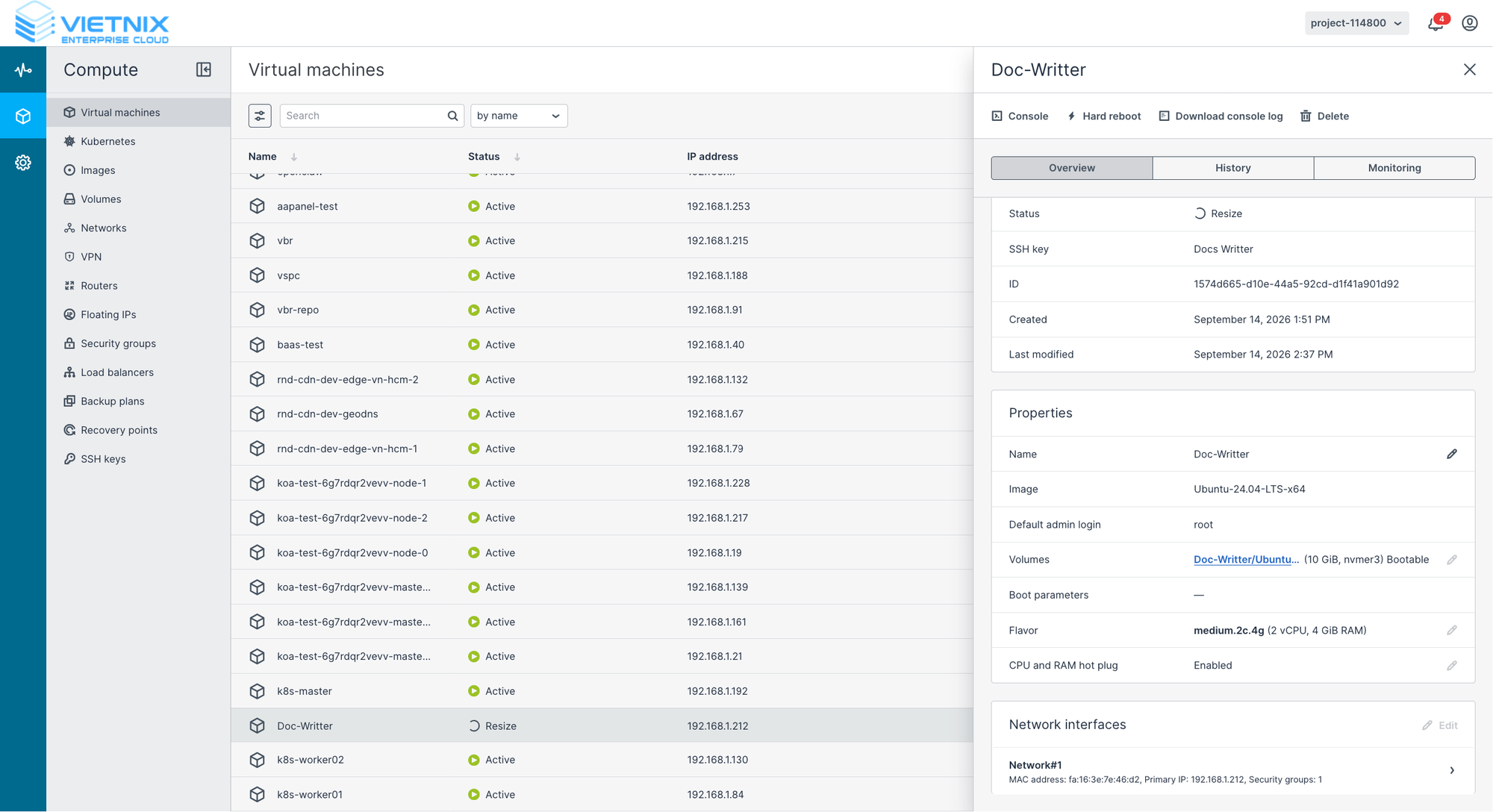
-
When the operation completes, the new Flavor is shown (for example
large.4c.16g) and the VM returns to Active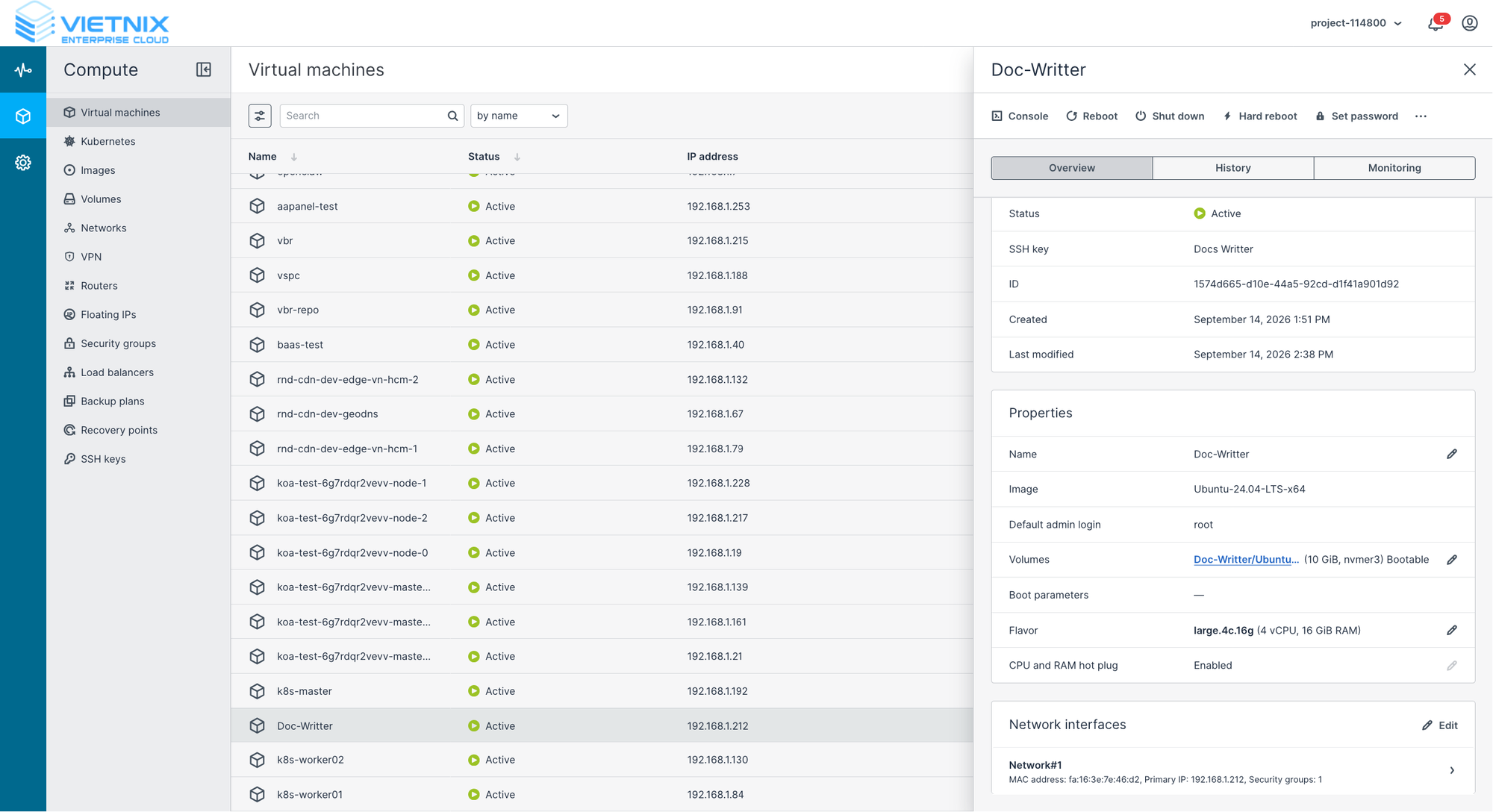
Before resizing, make sure the guest operating system supports CPU or RAM Hot Plug. Otherwise the guest operating system may become unstable after a resize. To increase CPU or RAM for such an operating system, stop the virtual machine first (see Method 2).
Only flavors marked Available can be applied while the VM is running. If the flavor you need is Unavailable, shut down the VM and use the cold resize method.
Hot Plug depends on the guest operating system. Some operating systems require a reboot, or a manual step (for example bringing a CPU online), before the new resources are usable. Verify the change inside the VM after resizing.
Method 2: Cold resize (change flavor)
Cold resize works for every VM, regardless of the Hot Plug setting. It is the recommended method for downgrading.
-
Login to Vietnix Cloud Dashboard
-
Navigate to Compute > Virtual Machines
-
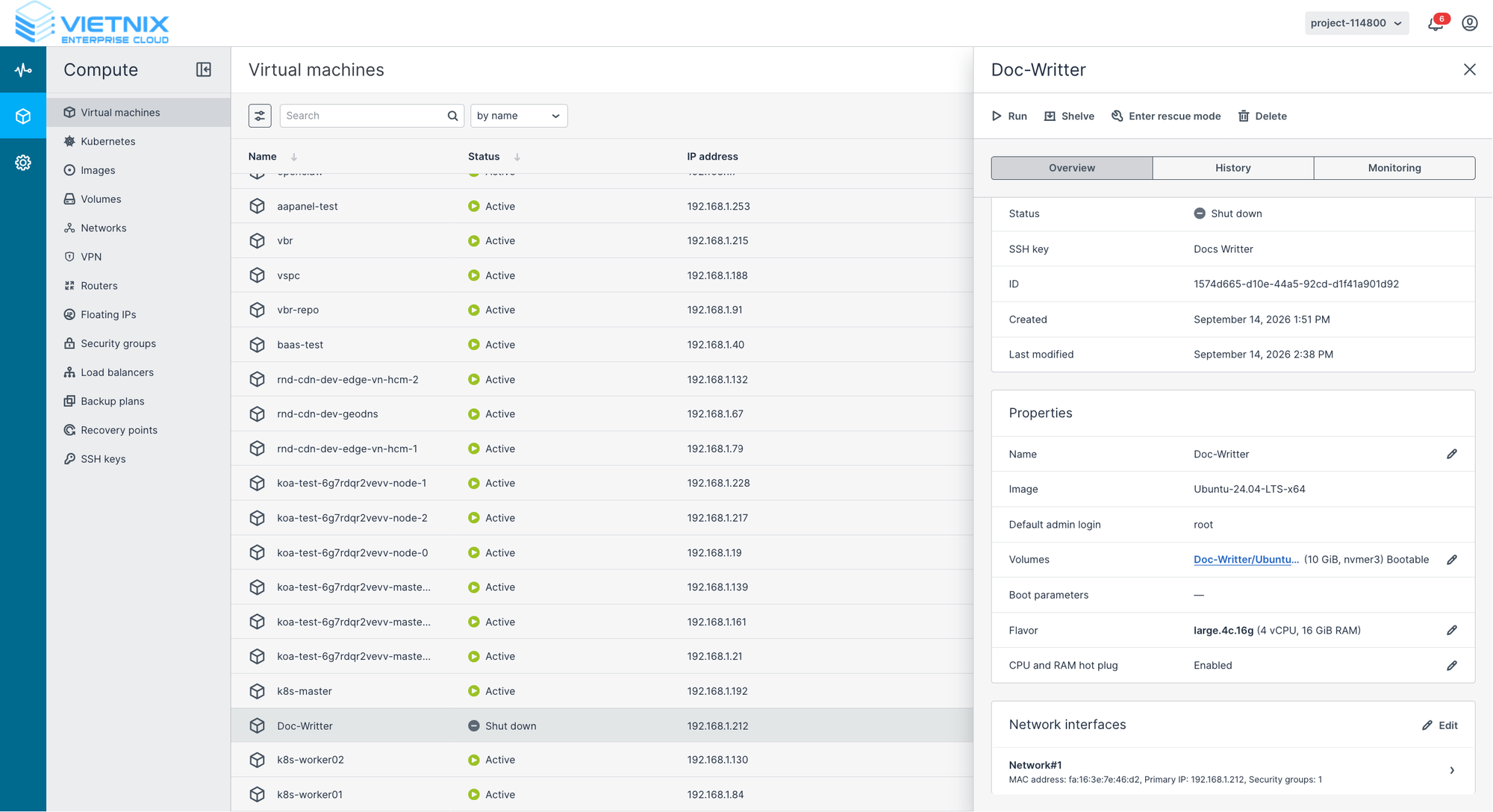
Select the VM and Shut down it gracefully (see VM Actions)
-
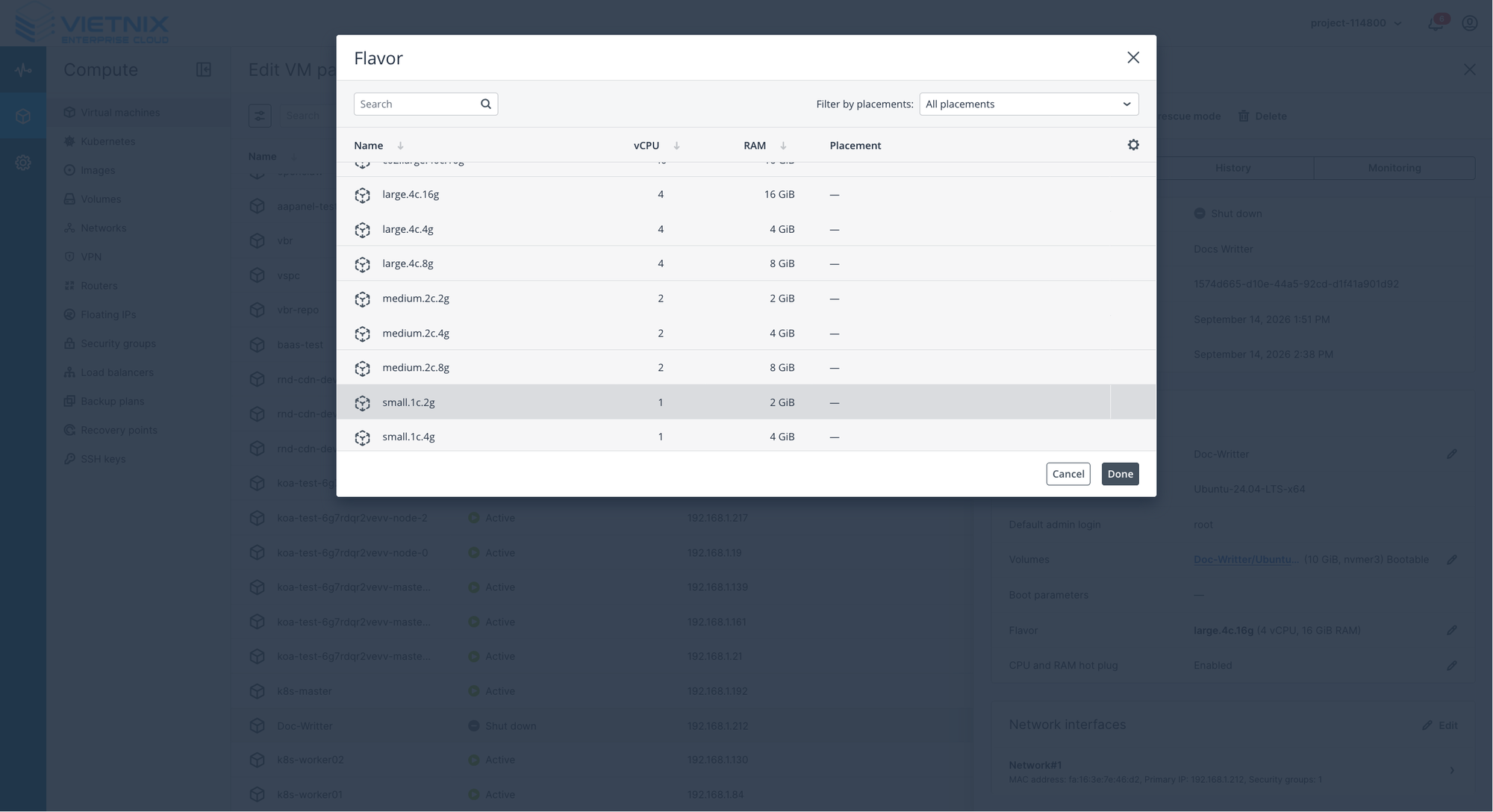
With the VM stopped, click the edit (pencil) icon next to Flavor and select the target flavor
-
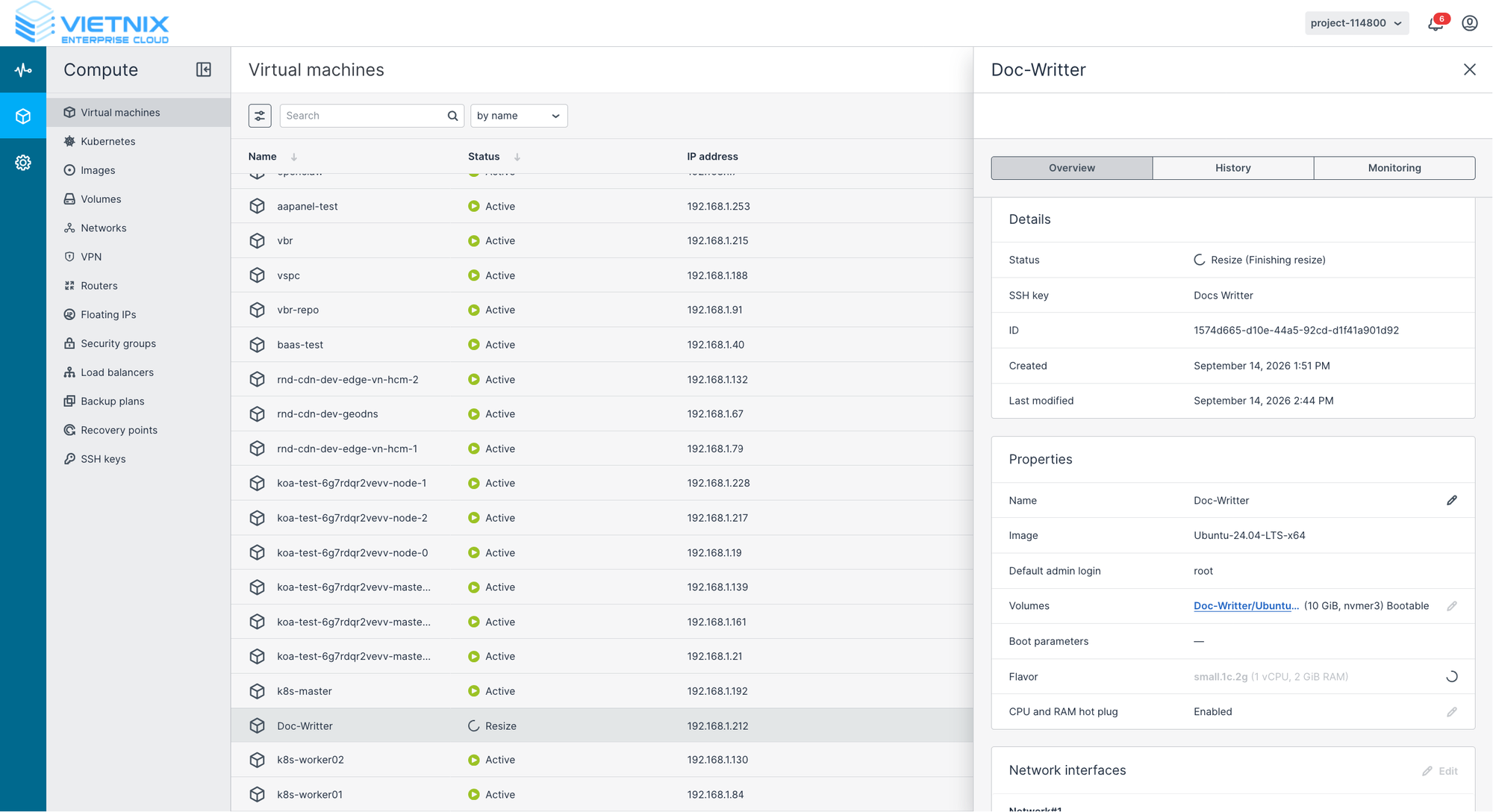
Review the selection and click Done. The VM status changes to Resize (Finishing resize)
-
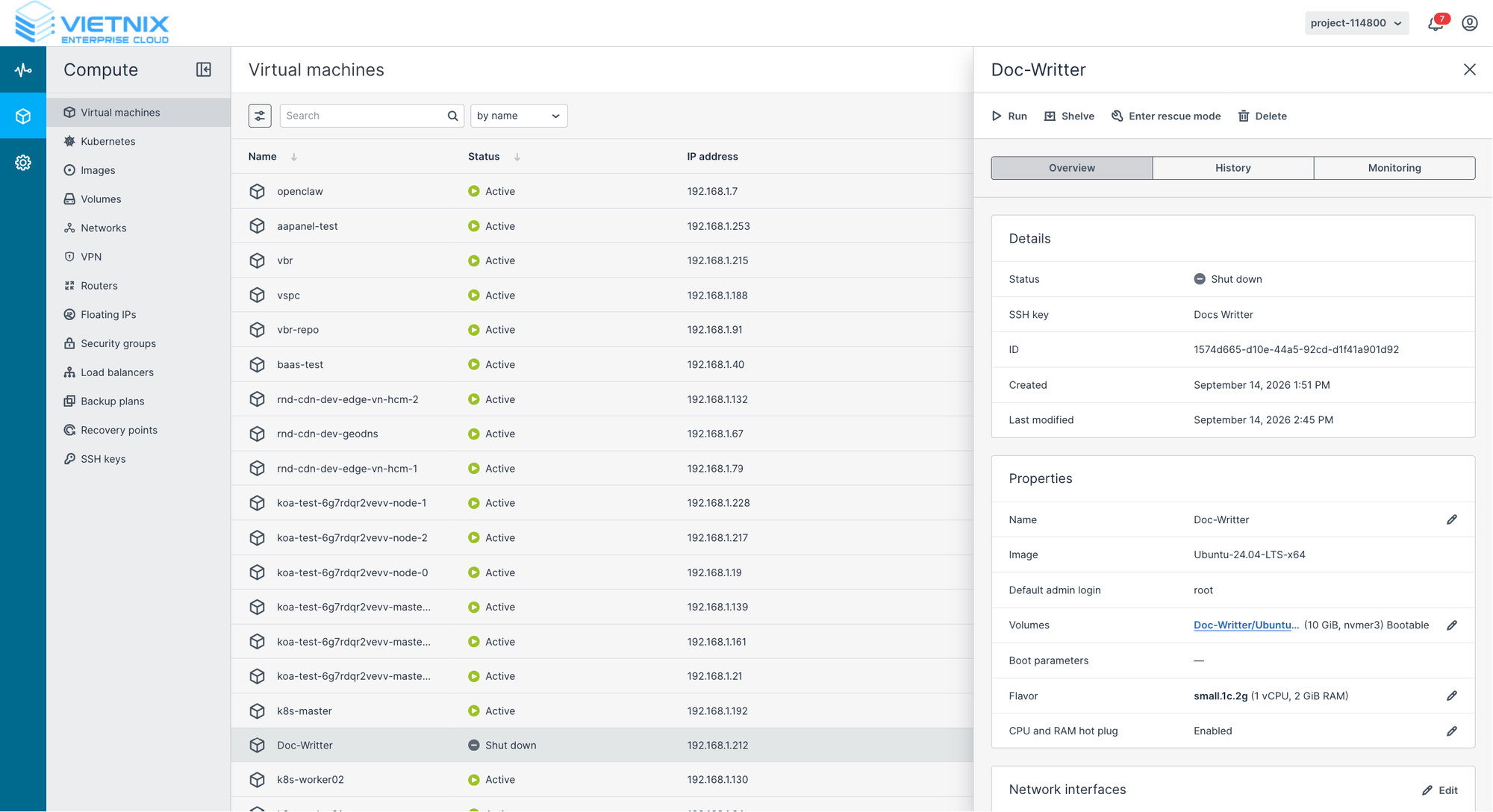
When the operation completes, the VM shows the new flavor and remains Shut down
-
Click Run to power on the VM, then verify that it boots correctly and is Active
Verify the new resources
After the resize is applied, confirm the new CPU and RAM from inside the VM:
Linux
nproc          # number of vCPUs
lscpu          # CPU details
free -h        # total memory
Windows
Open Task Manager > Performance and check the CPU and Memory sections.
Upgrade vs. Downgrade
| Aspect | Upgrade (increase CPU/RAM) | Downgrade (decrease CPU/RAM) |
|---|---|---|
| Goal | Handle more load, improve performance | Reduce cost when resources are over-provisioned |
| Hot Plug | Works when Hot Plug is enabled | Hot Plug (especially RAM hot-unplug) may not work reliably on all operating systems |
| Recommended method | Hot Plug resize | Cold resize (shut down first) |
| Disk size | Unchanged | Unchanged — the boot diskcannot be shrunk |
| Main risk | Insufficient quota in the project | Guest OS or applications may not fit the smaller resources and fail to boot |
Things to keep in mind
- Disk is never resized by changing the flavor. To shrink storage you must migrate the data to a smaller volume; to grow it, see Extend Volume.
- Downgrading RAM via Hot Plug (unplugging memory from a running OS) is not supported by every guest OS. Prefer shutting the VM down.
- Make sure the target flavor still satisfies the minimum requirements of your operating system and applications before downgrading.
- Resizing changes the resources billed to the project — review the Flavor Selection Guidelines and pricing before confirming.
- If the resize fails or the VM does not boot after a downgrade, restore the previous flavor or recover from the snapshot you created beforehand.
Related Resources
- VM Actions - Learn how to shut down, reboot, and manage the VM lifecycle
- Monitoring - Track CPU and RAM usage before and after resizing
- Create Snapshot - Back up your volume before changing the flavor
- Extend Volume - Grow the boot or data volume when more storage is needed