WP Plugin - Vietnix Media Offloader
Introduction
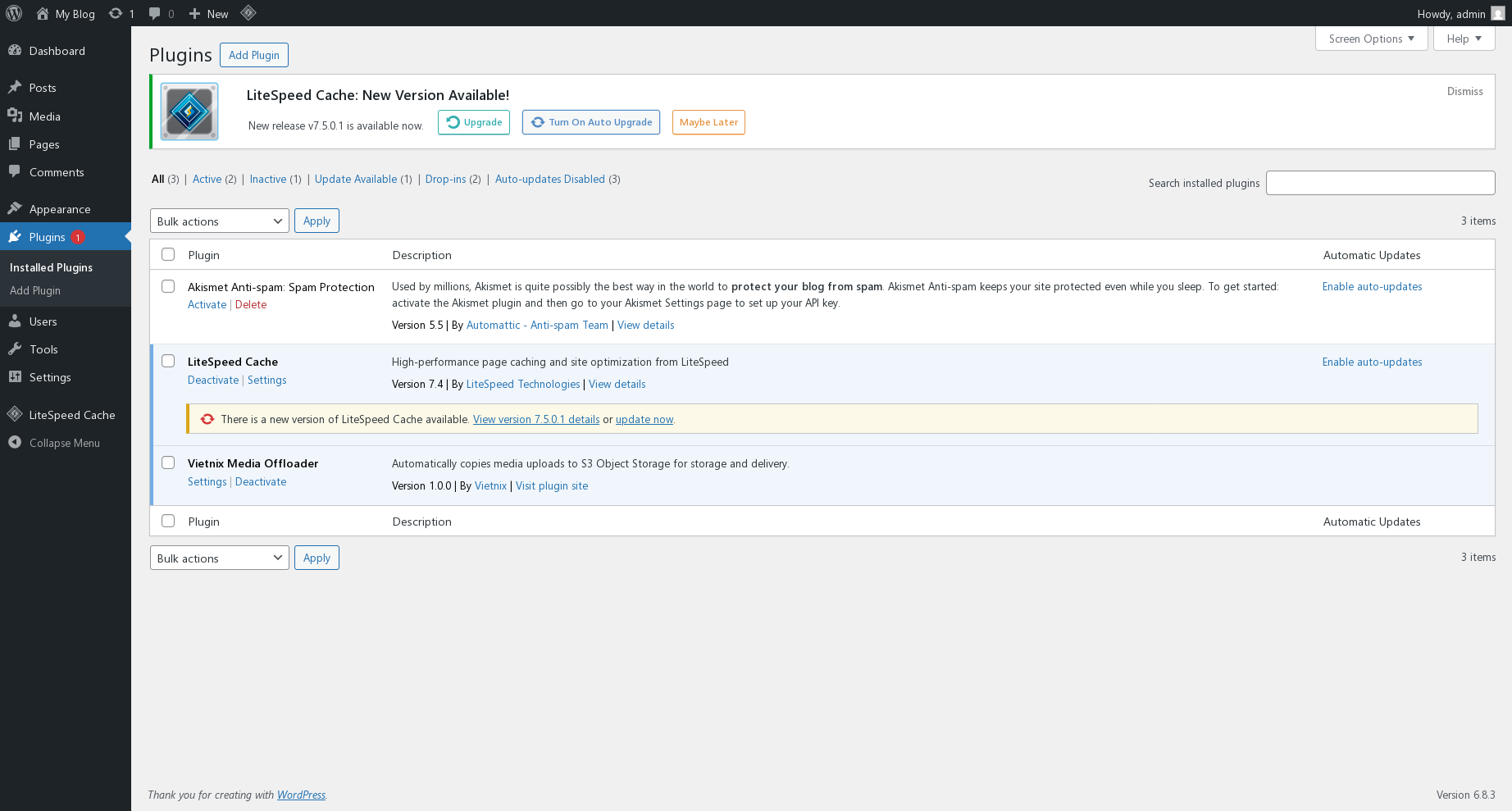
Vietnix Media Offloader is a WordPress plugin from Vietnix that helps you to offload media files to S3 storage. This plugin is designed to simplify the process of managing and storing media files, ensuring that your website remains fast and efficient.
Configuration
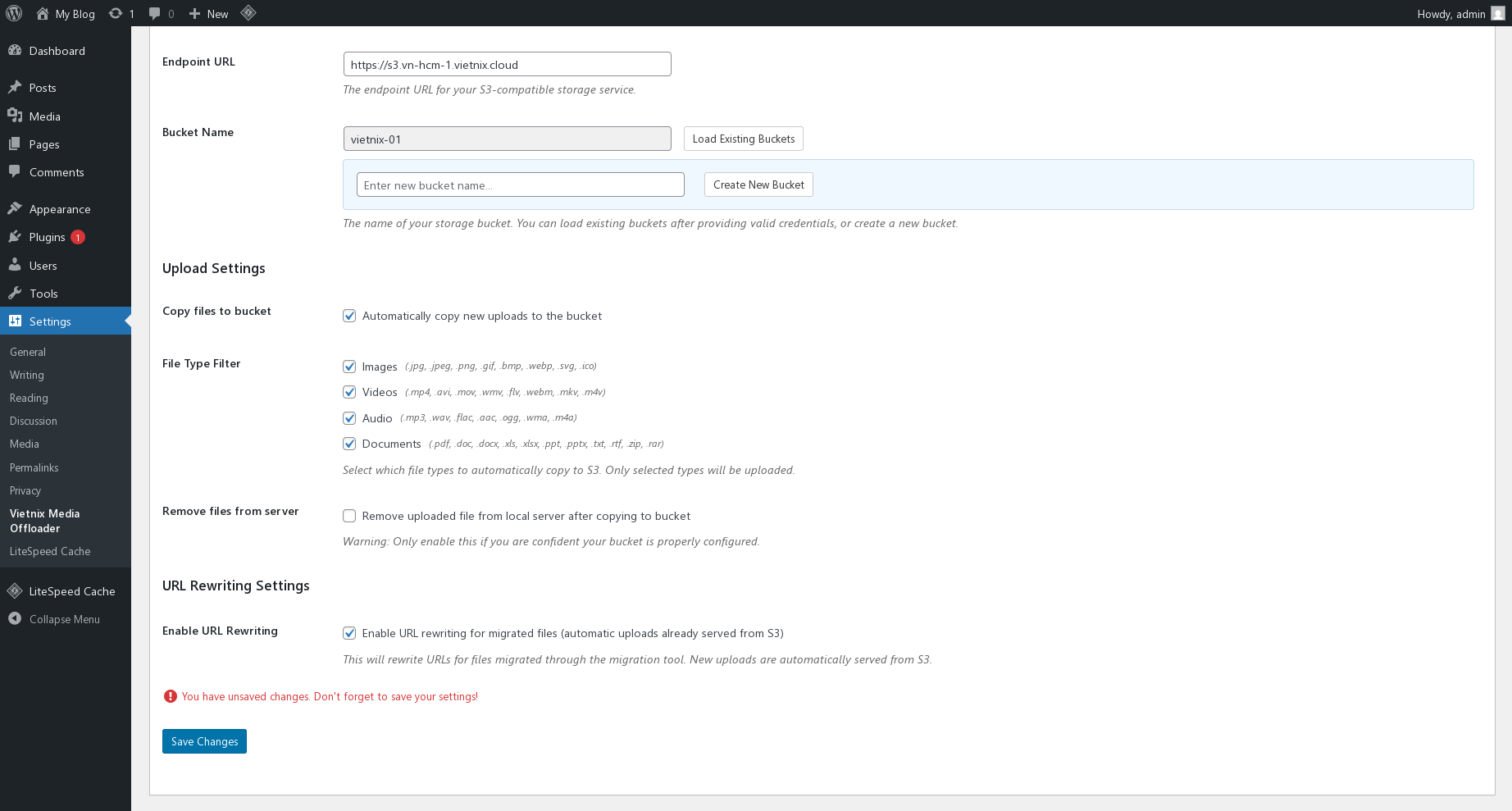
In the Vietnix Media Offloader configuration section, you can set up the connection to your S3 storage by providing the following details:
- Access Key: Your S3 access key.
- Secret Key: Your S3 secret key.
- Bucket Name: The name of your S3 bucket where media files will be stored.
- Endpoint: The endpoint URL for your S3 service (if applicable).

The configuration section also includes options for:
-
Upload Settings: Settings for uploading media files to S3
- Copy File to Bucket: Enable or disable automatically copying files to the S3 bucket upon upload.
- If enabled, you can choose to filter uploads by file type (e.g., images, videos, documents).
- Remove files from server: Enable or disable removing the local copy of the file after it has been successfully uploaded to S3.
- Copy File to Bucket: Enable or disable automatically copying files to the S3 bucket upon upload.
-
URL Rewriting Settings: Options to replace media file URLs to point to S3.
Features
Vietnix Media Offloader offers 3 main features:
- Media Migration: Easily migrate existing media files to S3 storage.
- Cleanup Local Storage: Remove local copies of media files after they have been successfully uploaded to S3.
- Sync from S3: Sync media files from S3 back to your local storage if needed.
Feature Details
-
Media Migration: This feature allows you to select and migrate your existing media files to S3 storage. You can choose specific files or migrate all media files in bulk.
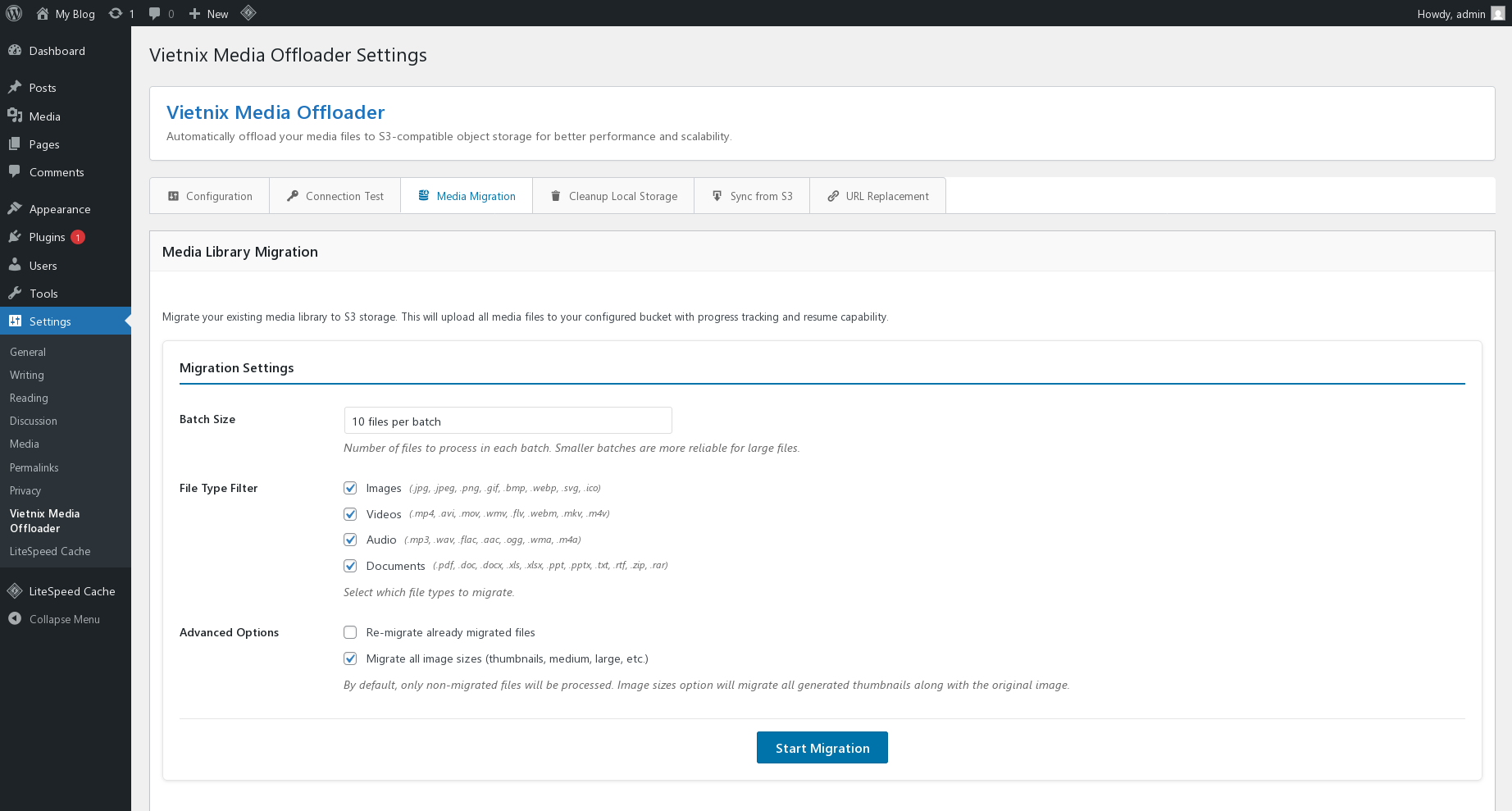
- Migration have some settings:
- Batch Size: Number of files to process in each batch during migration. You can select number of files to process in each batch (5, 10, 20, 50).
- File Type Filter: You can select which type of files to migrate (Images, Videos, Audio, Documents).
- Advanced Options: You can choose to skip files that already exist in the S3 bucket to avoid duplicates. And you can also choose to migrate all image sizes (thumbnails) along with the original images.
- Migration have some settings:
-
Cleanup Local Storage: After migrating media files to S3, you can use this feature to clean up your local storage by deleting the local copies of the files. This helps to free up space on your server.
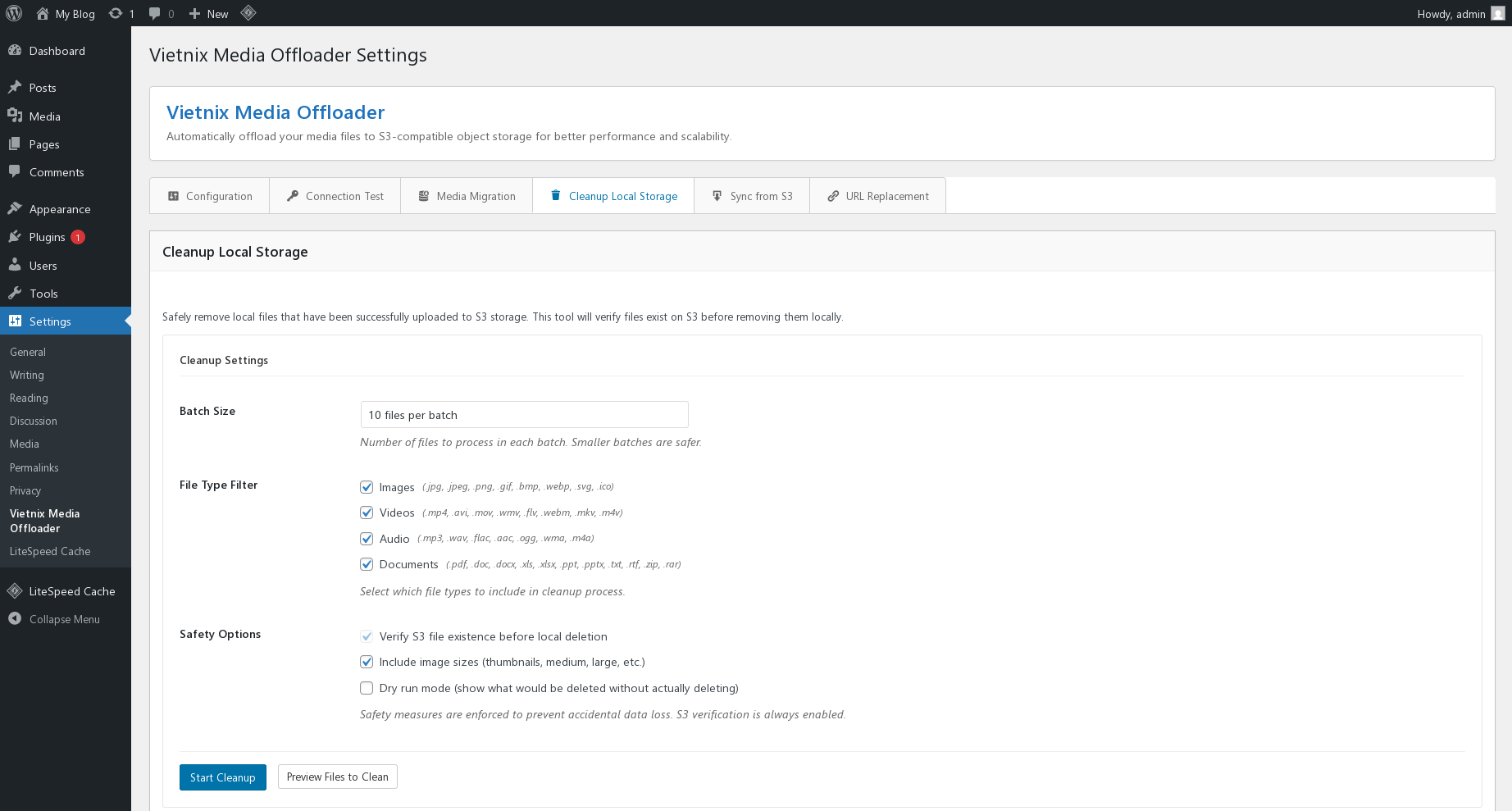
- Cleanup also have settings like Migration:
- Batch Size: Number of files to process in each batch during cleanup. You can select number of files to process in each batch (5, 10, 20, 50).
- File Type Filter: You can select which type of files to cleanup (Images, Videos, Audio, Documents).
- Safety Options:
- Verify S3 file existence before local deletion: This option ensures that the file exists in the S3 bucket before deleting the local copy, preventing accidental data loss. (This option is enabled by default and can not be disabled).
- Include image sizes (thumbnails, medium, large, etc.): This option allows you to include all image sizes associated with the original image when performing cleanup.
- Dry Run Mode: When enabled, this mode simulates the cleanup process without actually deleting any files. It provides a preview of which files would be deleted, allowing you to review the actions before making permanent changes.
- Cleanup also have settings like Migration:
-
Sync from S3: If you need to retrieve media files from S3 back to your local storage, this feature allows you to sync files from S3 to your server.
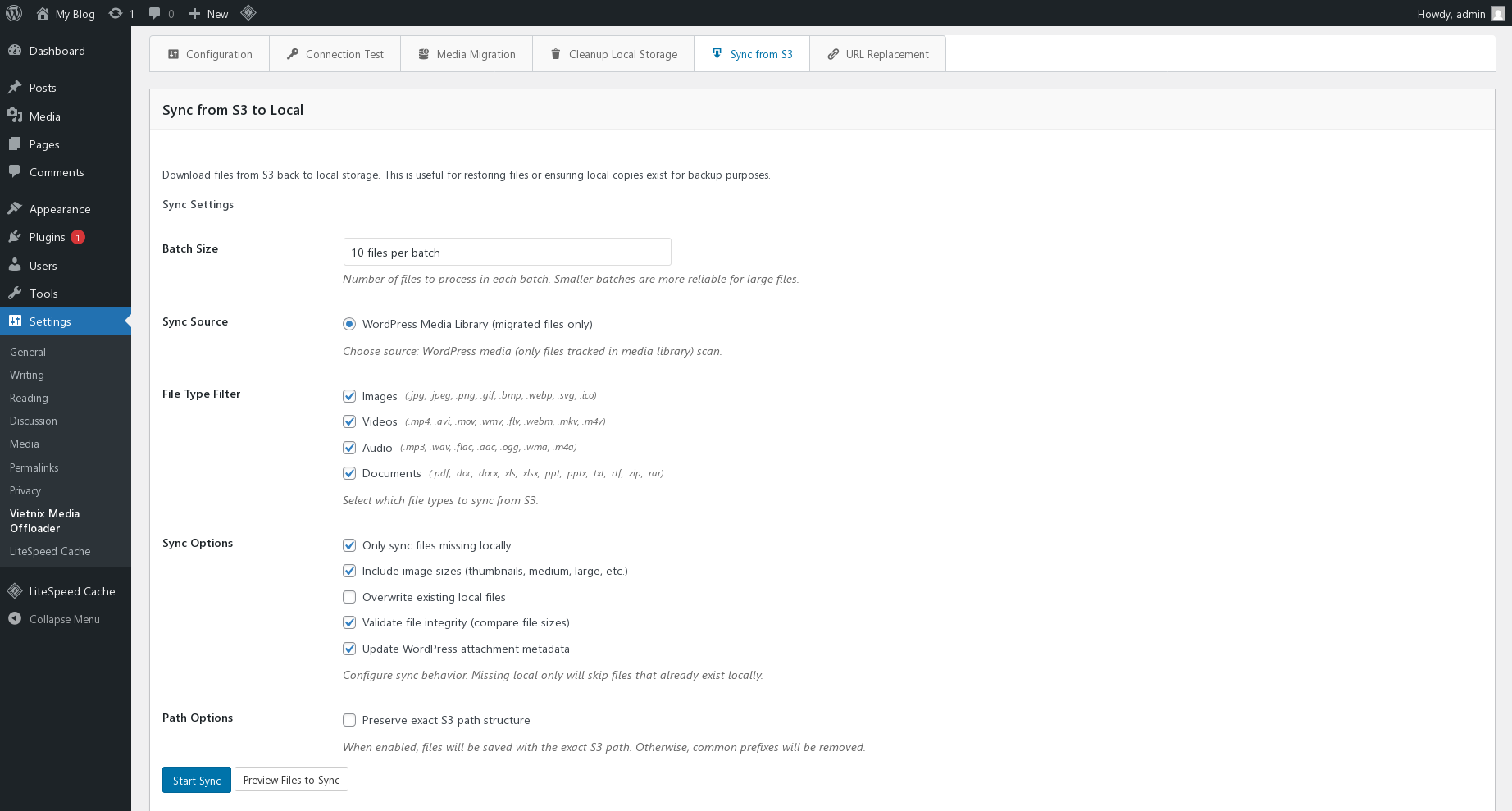
- Batch Size: Number of files to process in each batch during sync. You can select number of files to process in each batch (5, 10, 20, 50).
- File Type Filter: You can select which type of files to sync (Images, Videos, Audio, Documents).
- Sync Options:
- Only sync files missing locally: Skips files already existing on the server.
- Include image sizes (thumbnails, medium, large, etc.): Downloads all registered image sizes with the original.
- Overwrite existing local files: Re-downloads and replaces local copies even if they exist.
- Validate file integrity (compare file sizes): Compares remote and local file sizes; re-downloads if mismatch.
- Update WordPress attachment metadata: Regenerates and updates attachment metadata after syncing.
- Preserve full S3 path: When enabled, files will be saved with the exact S3 path. Otherwise, common prefixes will be removed.
We also have section URL Replacement to help you to replace the URL of media files to point to S3 storage.

Conclusion
Vietnix Media Offloader is a powerful tool for managing and offloading media files to S3 storage. By using this plugin, you can ensure that your website remains fast and efficient while effectively managing your media files. For more information and to download the plugin, visit the Vietnix Media Offloader page