Two-Factor Authentication (2FA)
What is Two-Factor Authentication (2FA)?
Two-Factor Authentication (2FA) is an additional layer of security that protects your Vietnix Cloud Console account.
This guide covers the following 2FA methods:
How to set up Two-Factor Authentication (2FA) in Vietnix Cloud
This section will guide you through the steps to enable Two-Factor Authentication (2FA) for your Vietnix Cloud account.
Google Authenticator
Google Authenticator is a free, simple authenticator app developed by Google. It generates time-based one-time passwords (TOTP) for 2FA and is available on both Android and iOS.
Prerequisites
- A smartphone (Android or iOS)
- Google Authenticator app installed:
- Google Play Store (Android)
- App Store (iOS)
Setup Steps
-
Log in to your Vietnix Cloud account.
-
Click the user icon in the top-right corner and select Configure 2FA.
-
A QR code will be displayed on the screen.
-
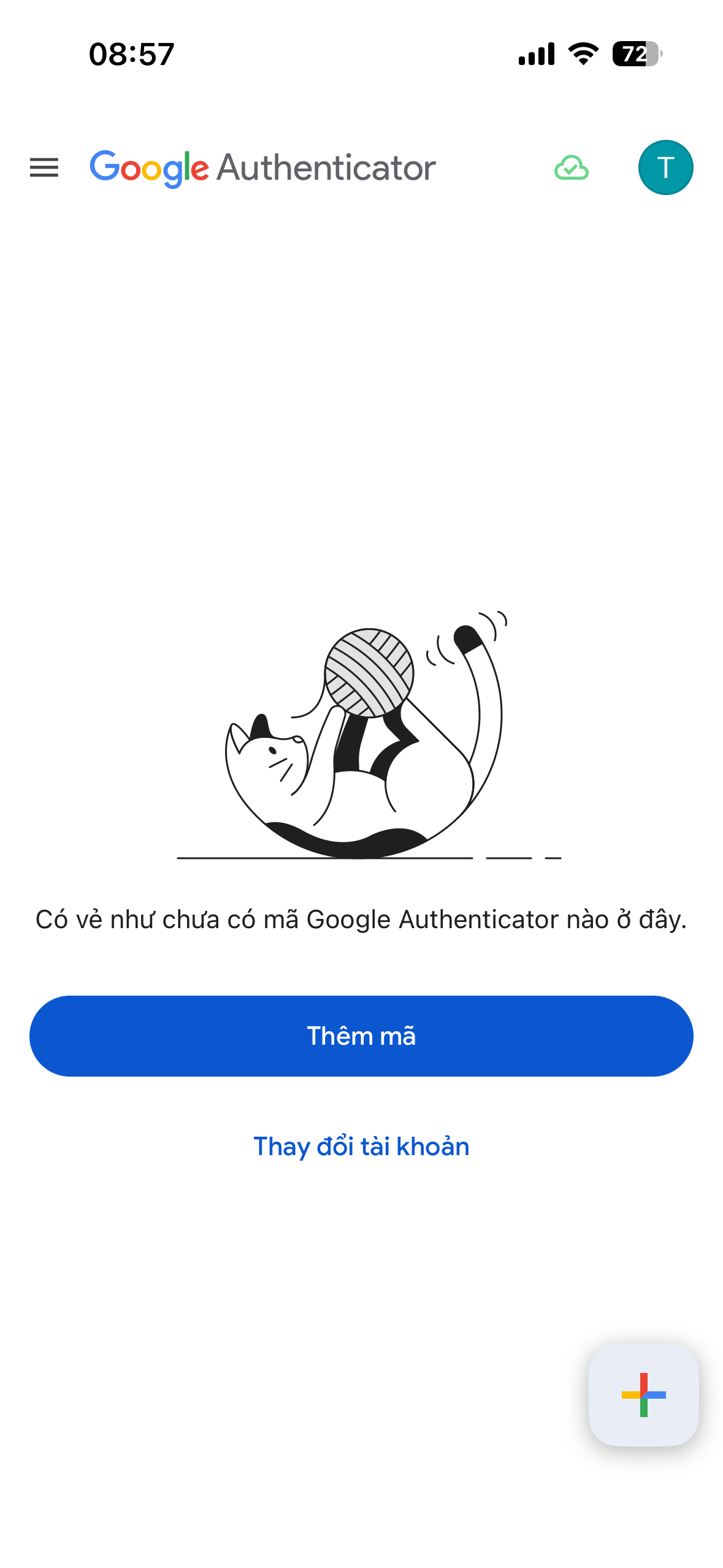
Open the Google Authenticator app on your phone.
-
Tap the + button at the bottom right corner.
-
Select Scan a QR code.
-
Point your phone's camera at the QR code displayed in the Vietnix Cloud Console.
-
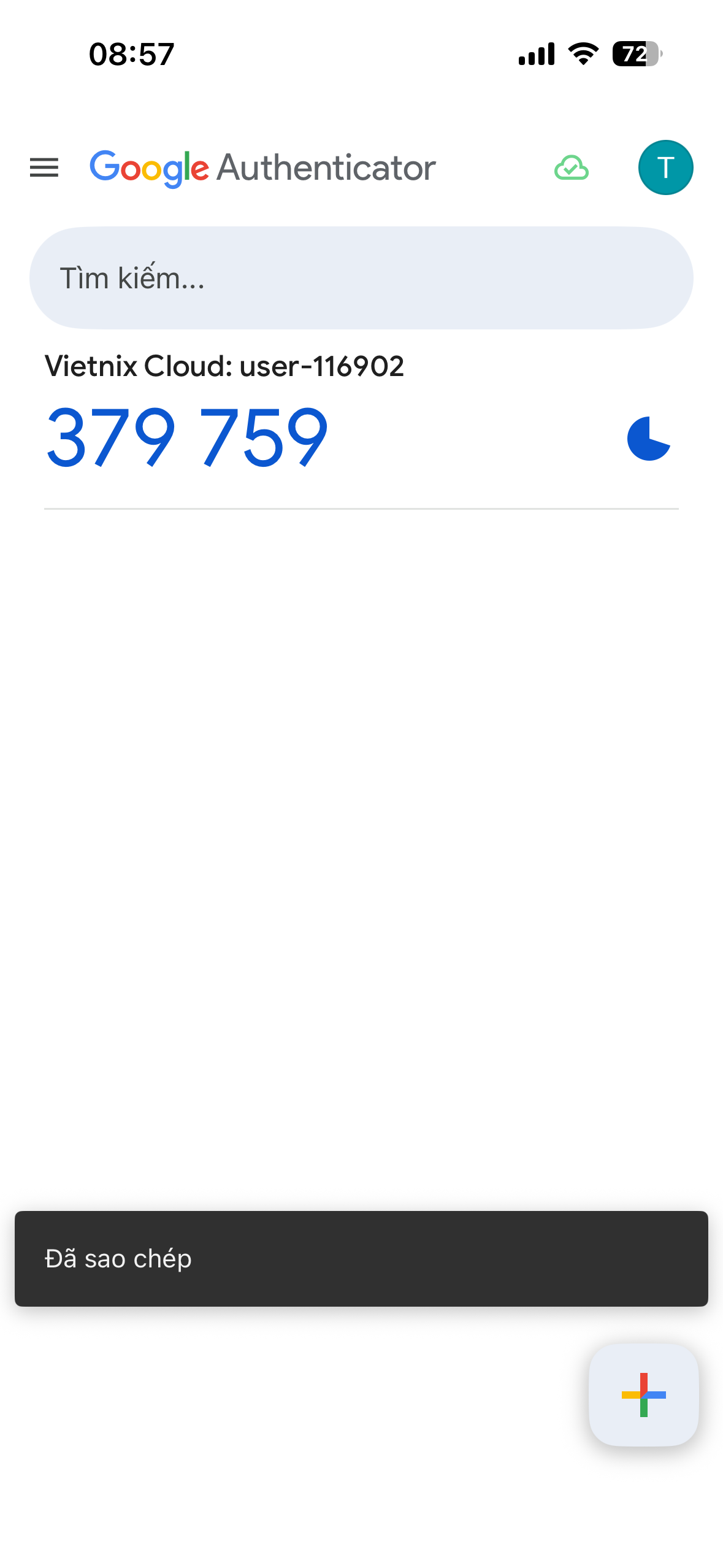
Google Authenticator will automatically add Vietnix Cloud to your account list and start generating 6-digit codes that refresh every 30 seconds.
-
Enter the current 6-digit code into the Vietnix Cloud Console to complete verification.
Using 2FA After Setup
When logging in to Vietnix Cloud:
- Enter your username and password as usual.
- Open the Google Authenticator app on your phone.
- Find the Vietnix Cloud entry and note the current 6-digit code.
- Enter the code in the Vietnix Cloud login prompt before it expires (codes refresh every 30 seconds).
Microsoft Authenticator
Microsoft Authenticator is a free authenticator app developed by Microsoft. It generates time-based one-time passwords (TOTP) for 2FA and is available on both Android and iOS.
Prerequisites
- A smartphone (Android or iOS)
- Microsoft Authenticator app installed:
- Google Play Store (Android)
- App Store (iOS)
Setup Steps
-
Log in to your Vietnix Cloud account.
-
Click the user icon in the top-right corner and select Configure 2FA.
-
A QR code will be displayed on the screen.
-
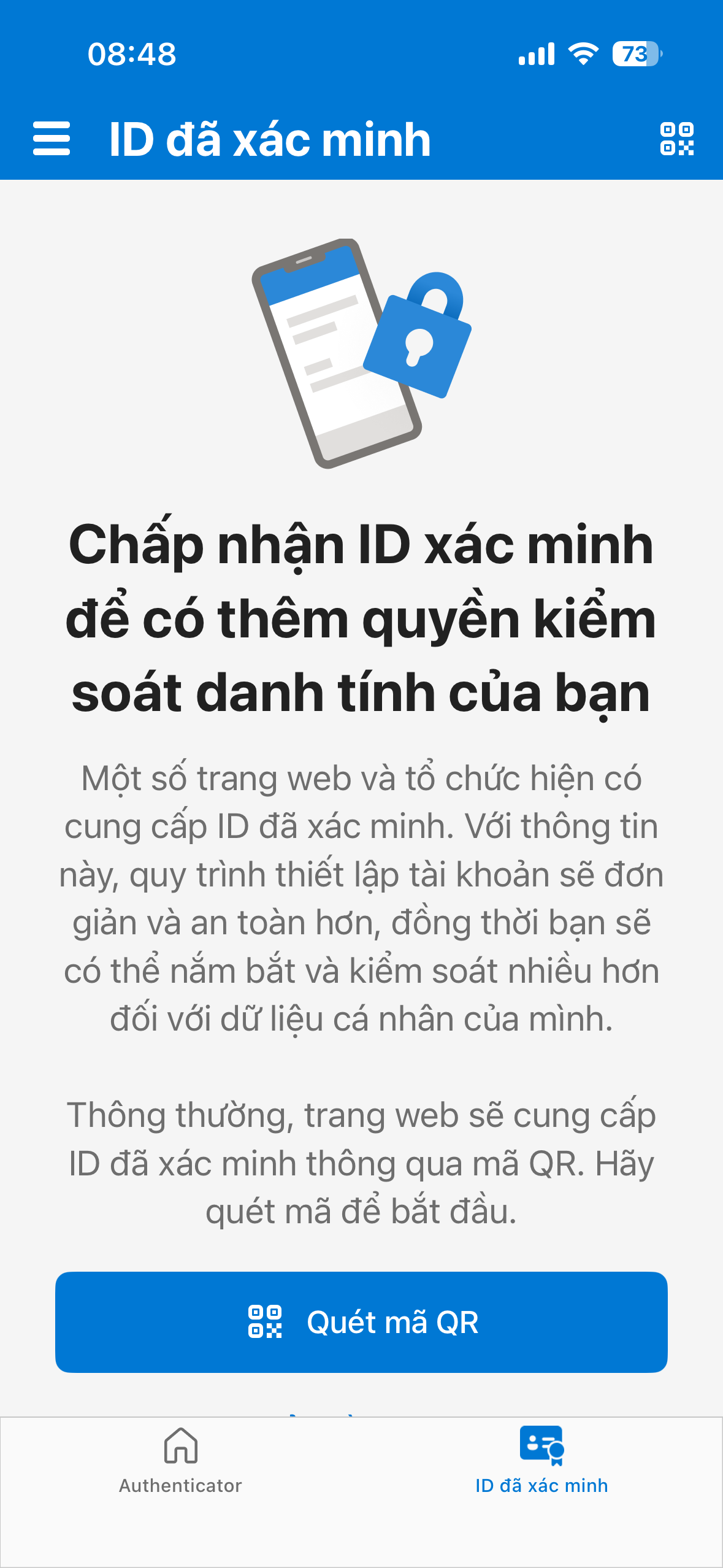
Open the Microsoft Authenticator app on your phone.
-
Tap the QR icon in the top-right corner.
-
Point your phone's camera at the QR code displayed in the Vietnix Cloud Console.
-
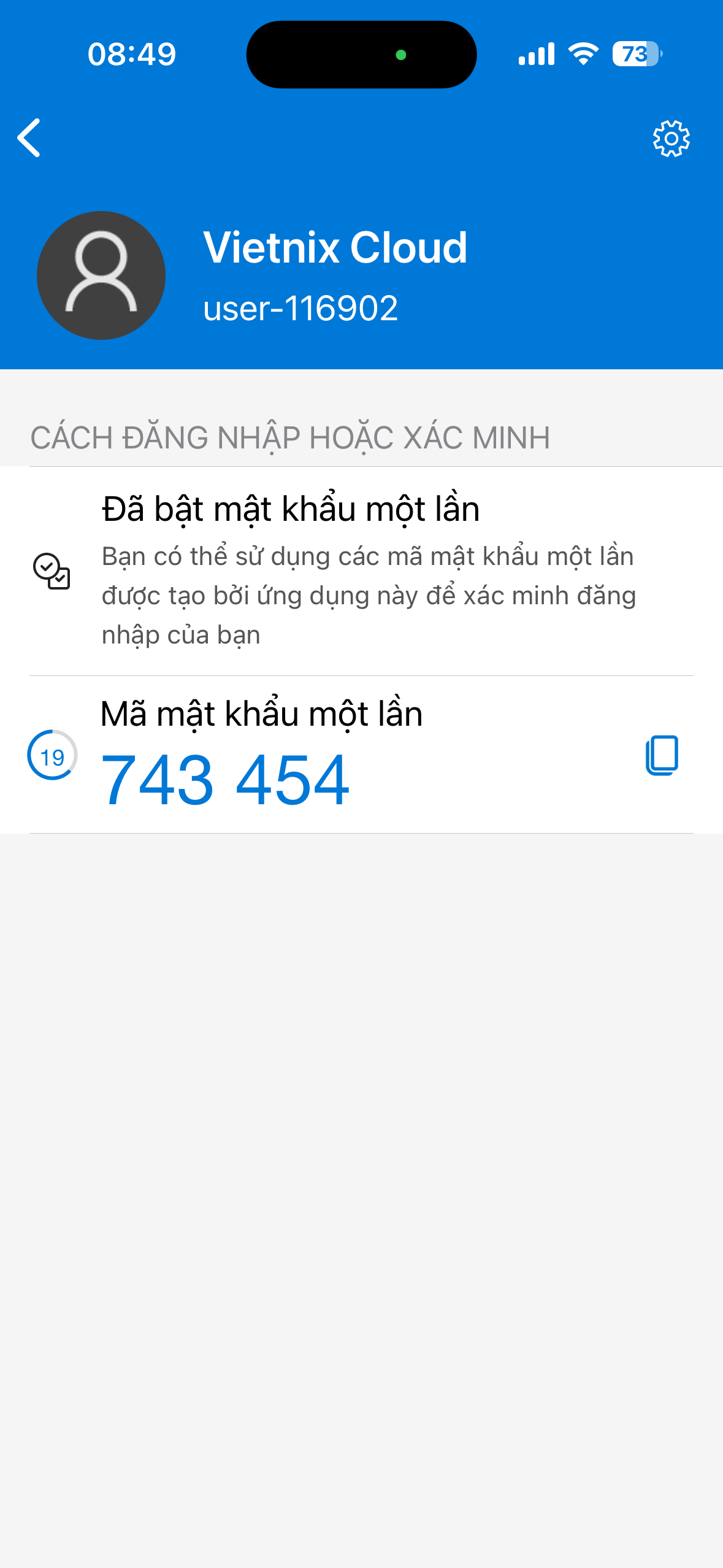
Microsoft Authenticator will automatically add Vietnix Cloud to your account list and start generating 6-digit codes that refresh every 30 seconds.
-
Enter the current 6-digit code into the Vietnix Cloud Console to complete verification.
Using 2FA After Setup
When logging in to Vietnix Cloud:
- Enter your username and password as usual.
- Open the Microsoft Authenticator app on your phone.
- Find the Vietnix Cloud entry and note the current 6-digit code.
- Enter the code in the Vietnix Cloud login prompt before it expires (codes refresh every 30 seconds).
Passwords App (macOS)
Passwords is a built-in app on macOS that securely stores your passwords and supports generating 2FA codes. Your credentials sync automatically via iCloud across all your Apple devices (Mac, iPhone, iPad).
- Safari (default browser): The Passwords app automatically suggests credentials and 2FA codes when logging in.
- Other browsers (Chrome, Firefox, Edge): Install the iCloud Passwords extension to enable auto-fill.
Prerequisites
- macOS Sonoma (14.0) or later
- iCloud Keychain enabled: System Settings → Apple Account → iCloud → Passwords & Keychain → On
Setup Steps
-
Log in to your Vietnix Cloud account.
-
Click the user icon in the top-right corner and select Configure 2FA.
-
Click Setup key to reveal the secret key, then copy it.
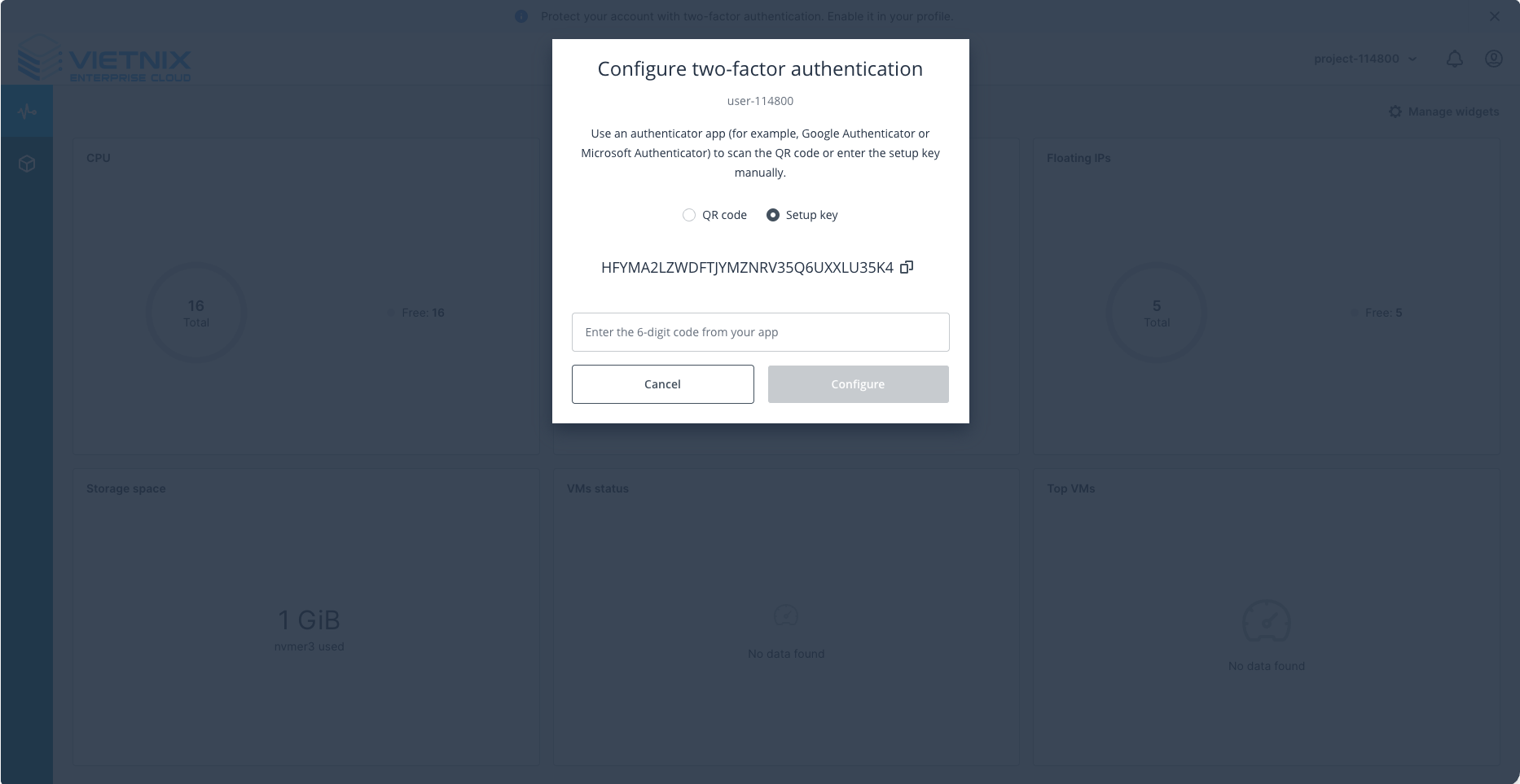
-
Open the Passwords app on macOS (search with Spotlight:
⌘ + Space→ type "Passwords"). -
Find and select your Vietnix Cloud account entry. If it doesn't exist, click + to create a new entry with:
- Website:
console.vietnix.cloud - Username: Your Vietnix Cloud username
- Password: Your Vietnix Cloud password
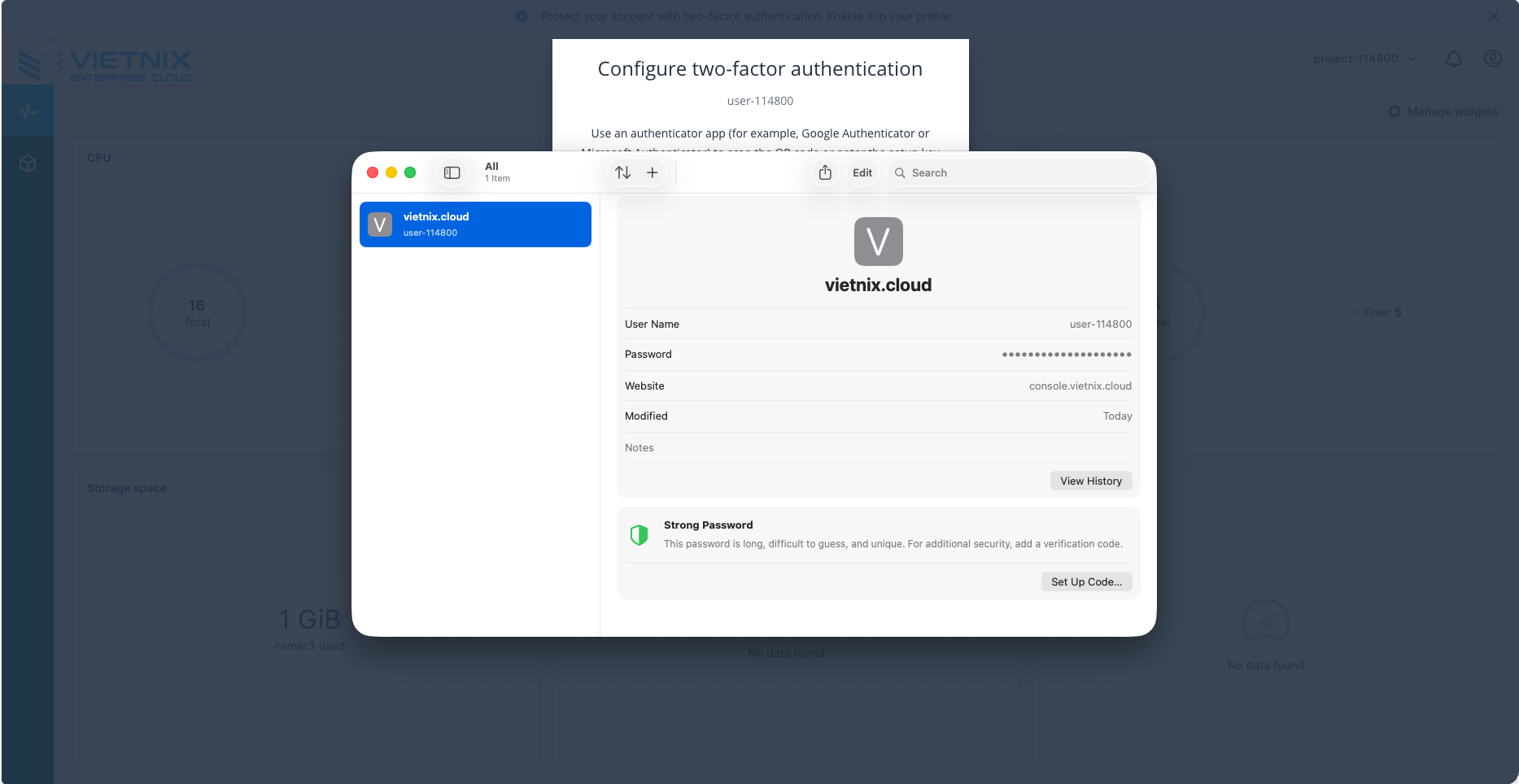
- Website:
-
Click Set Up Verification Code, then paste the setup key you copied earlier.
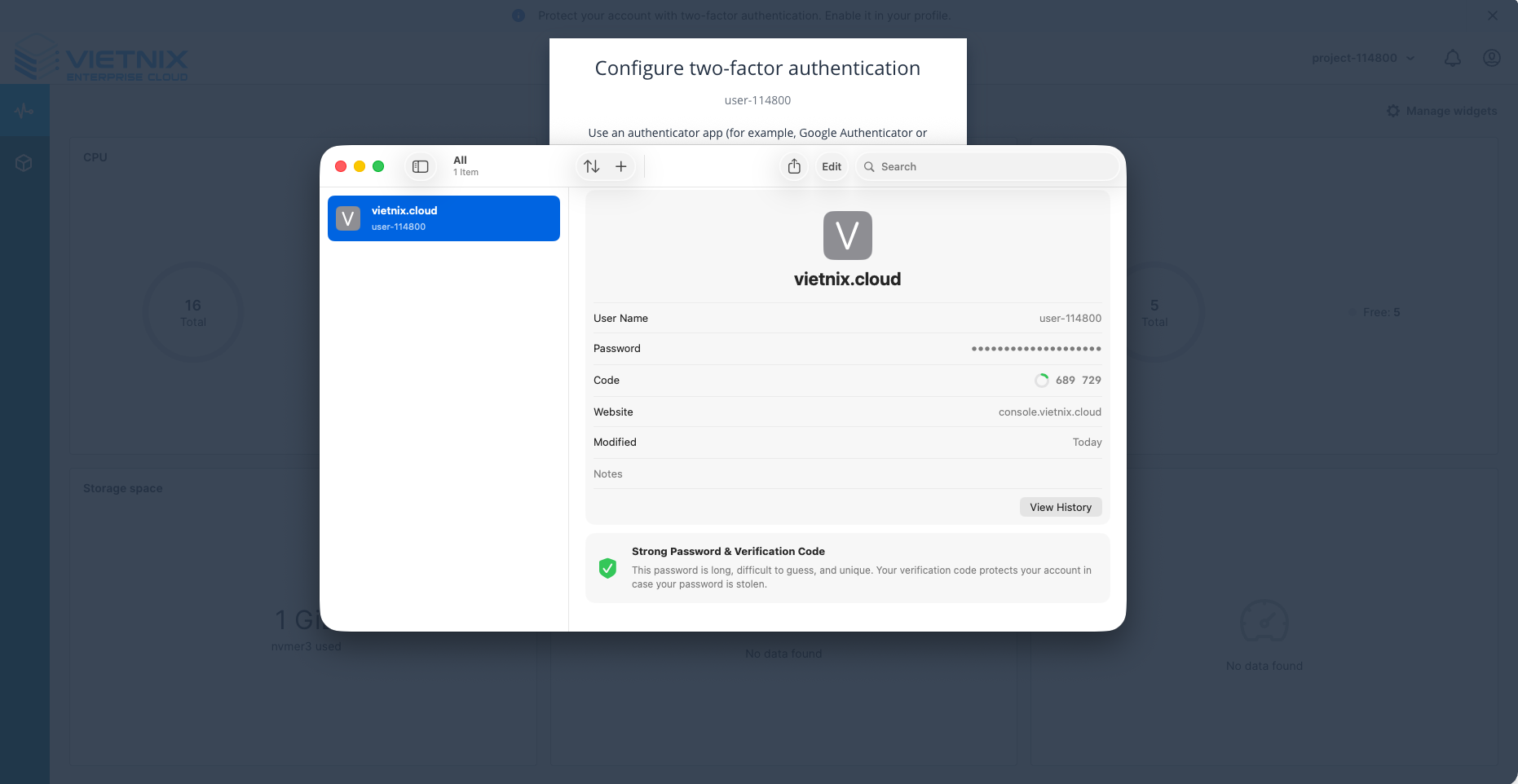
-
A 6-digit code will appear and refresh every 30 seconds.
-
Return to the Vietnix Cloud Console and enter the code to complete verification.
Using 2FA After Setup
When logging in to Vietnix Cloud, the Passwords app will automatically display the current 2FA code—simply click to auto-fill.
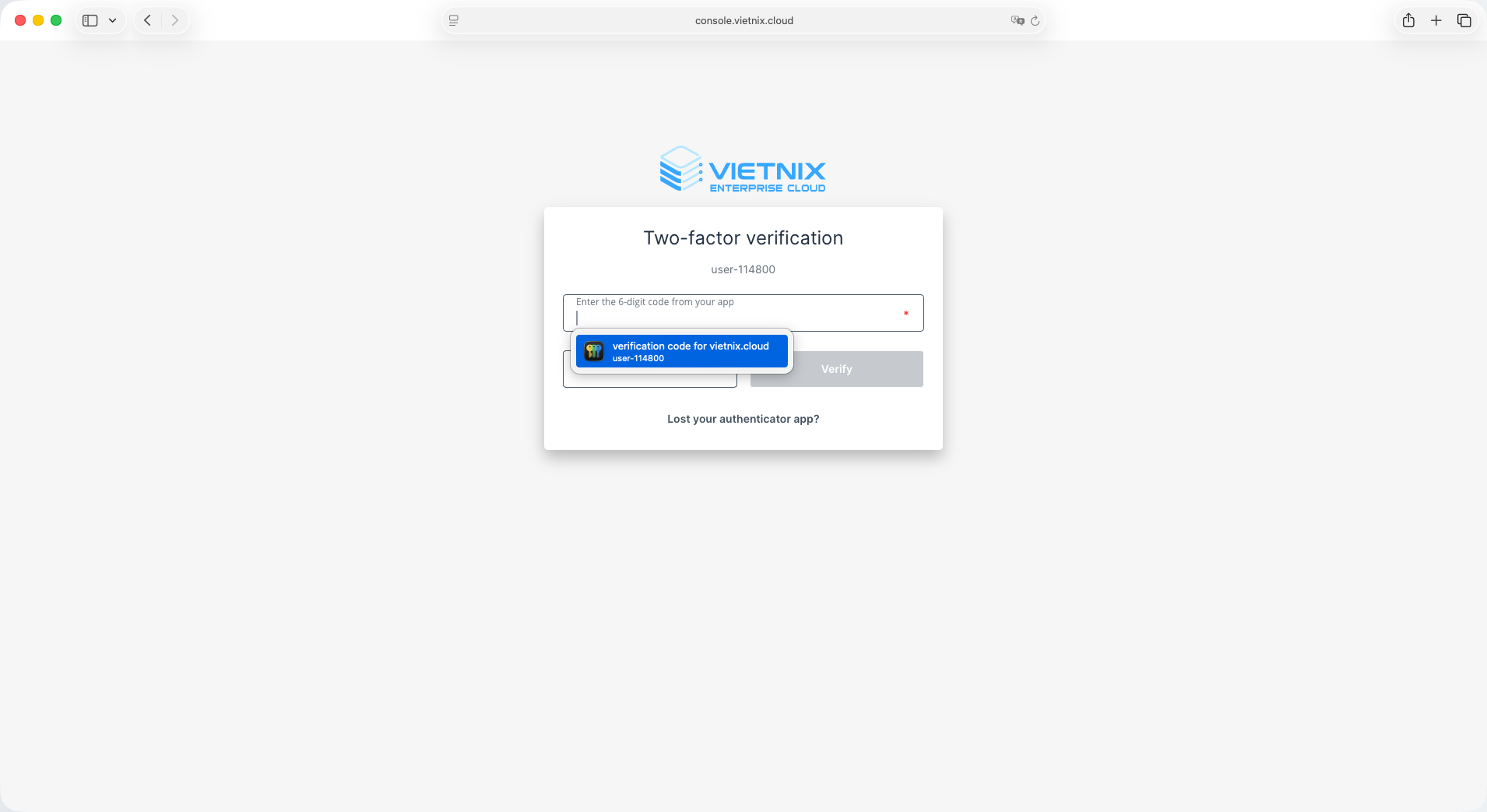
Since your credentials are stored in iCloud, you can access the same 2FA codes on your iPhone or iPad via Settings → Passwords.
1Password
1Password is a premium password manager that securely stores your passwords and generates 2FA codes. It syncs across all platforms (macOS, Linux, iOS, Android) via cloud backup, ensuring you never lose access to your credentials.
Prerequisites
- 1Password subscription (free trial available)
- 1Password desktop app or browser extension installed
Initial Steps (For Both Methods)
- Log in to your Vietnix Cloud account.
- Click the user icon in the top-right corner and select Configure 2FA.
- A QR code will be displayed on the screen.
Now choose one of the methods below to complete the setup:
Method A: Using the 1Password Desktop App
-
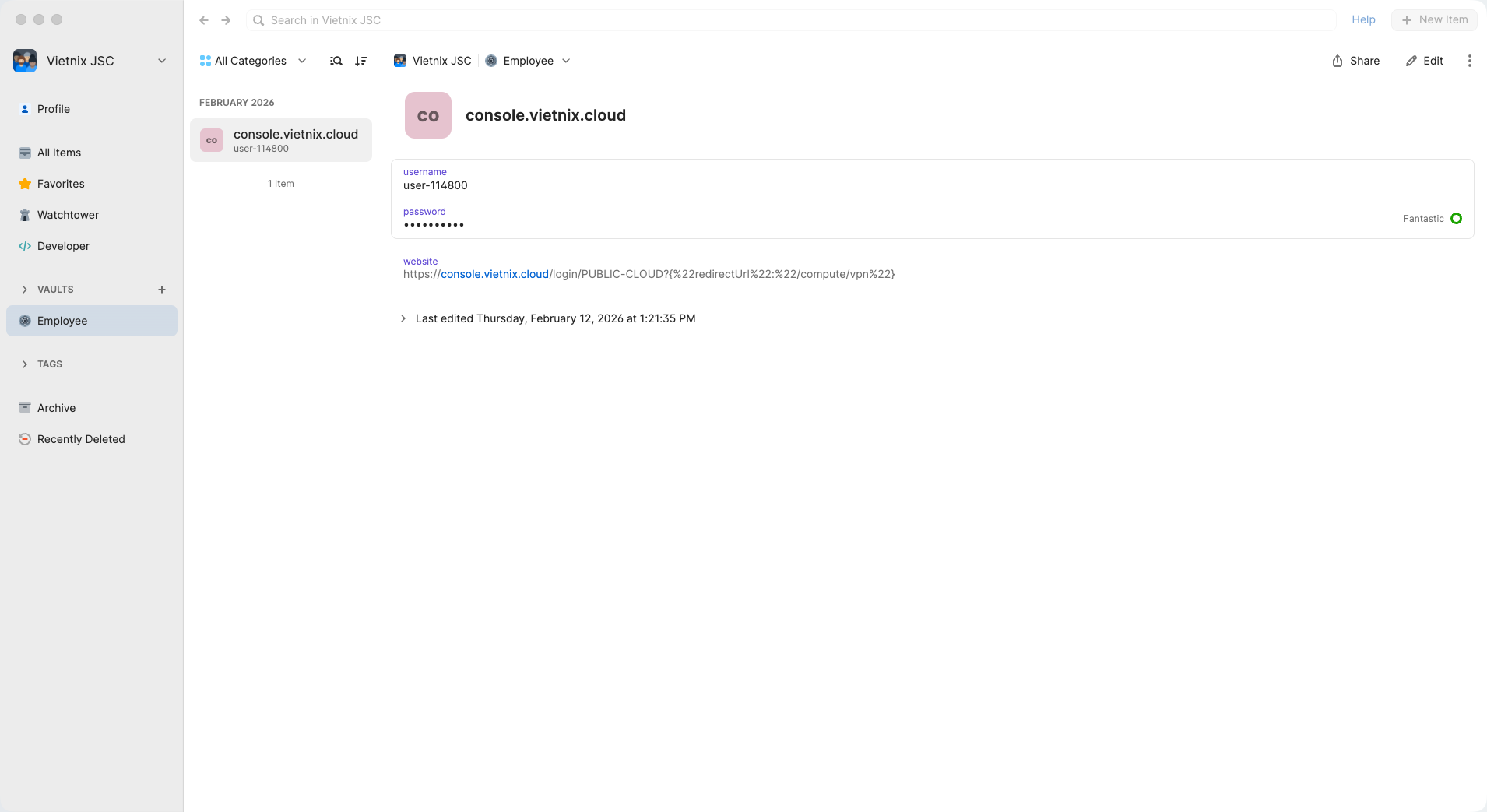
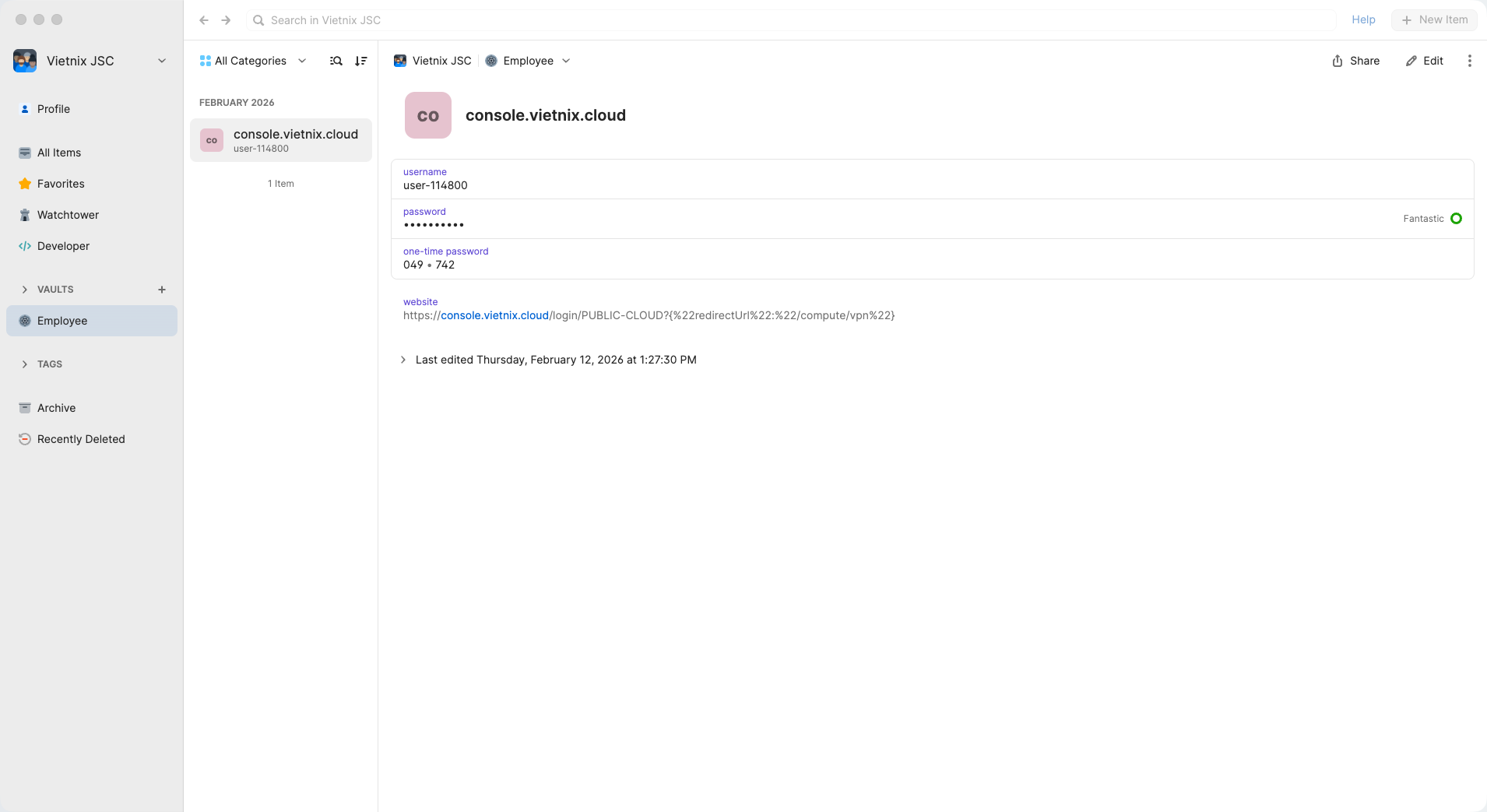
Open the 1Password app and find your Vietnix Cloud login entry. If it doesn't exist, create a new Login item with:
- Title: Vietnix Cloud
- Username: Your Vietnix Cloud username
- Password: Your Vietnix Cloud password
- Website:
https://console.vietnix.cloud
-
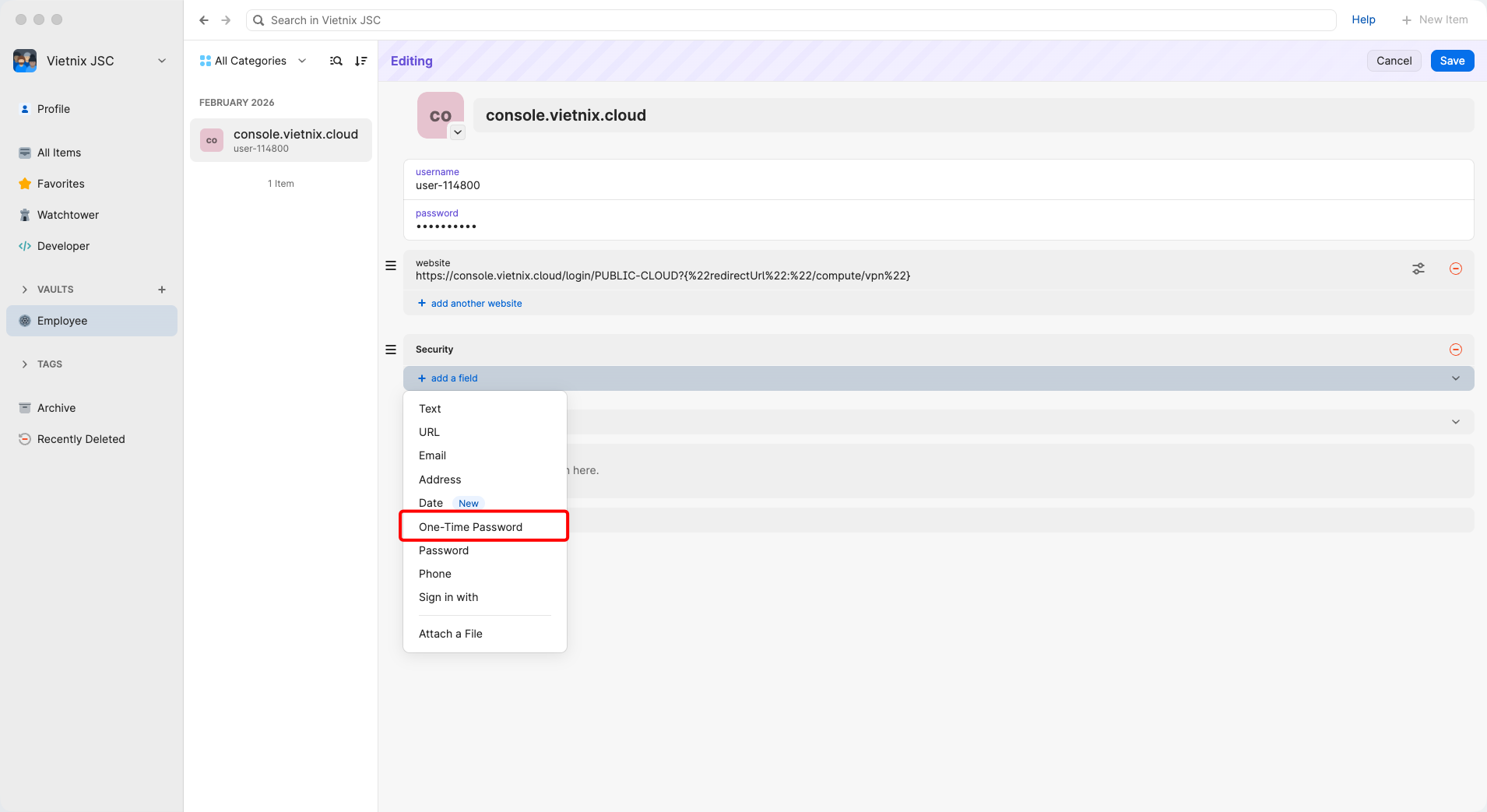
Click Edit, then click Add Field and select One-Time Password.
-
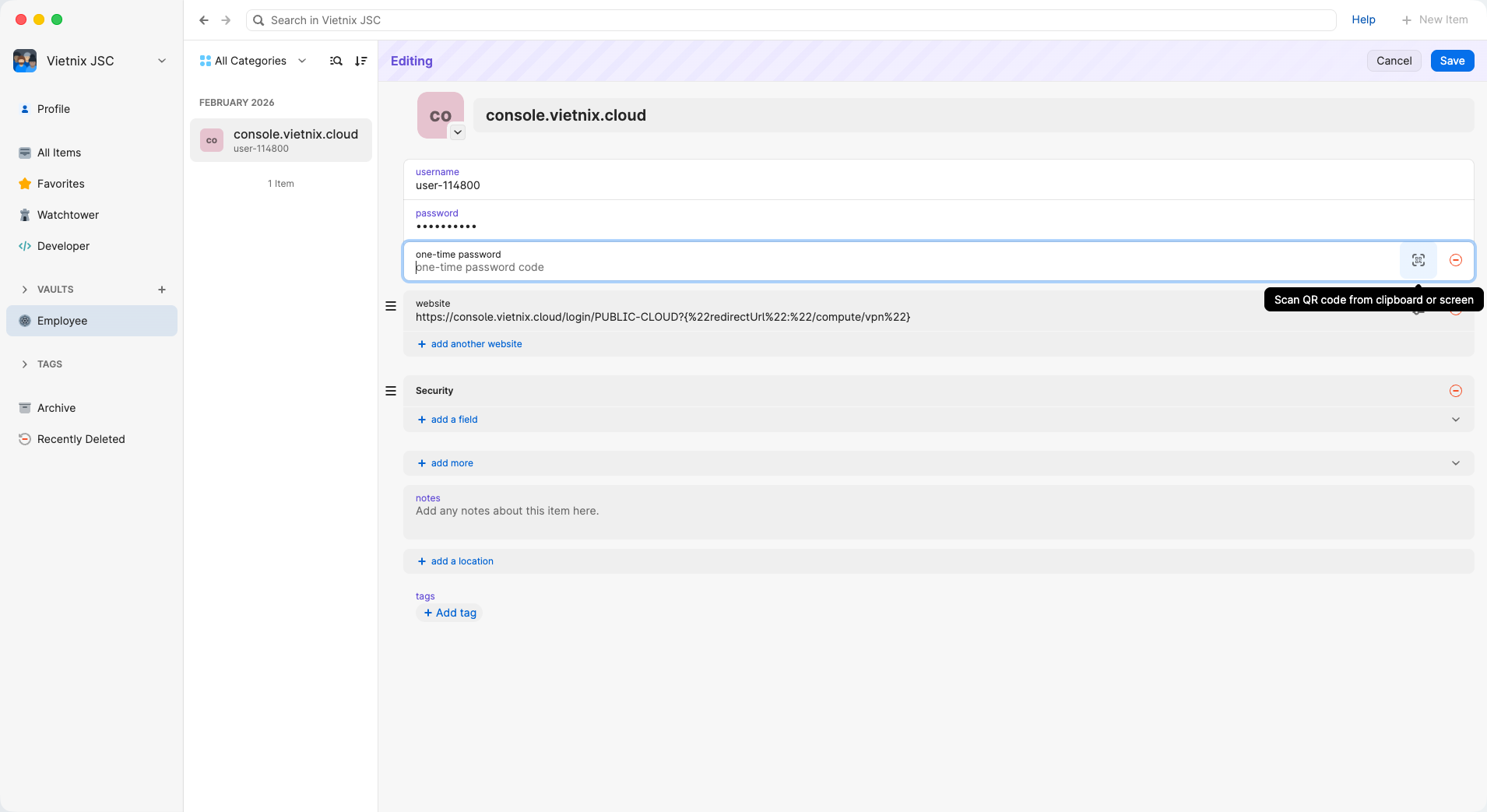
Click the QR code icon next to the One-Time Password field. The app will request camera permission—allow it to scan the QR code from the Vietnix Cloud Console.
-
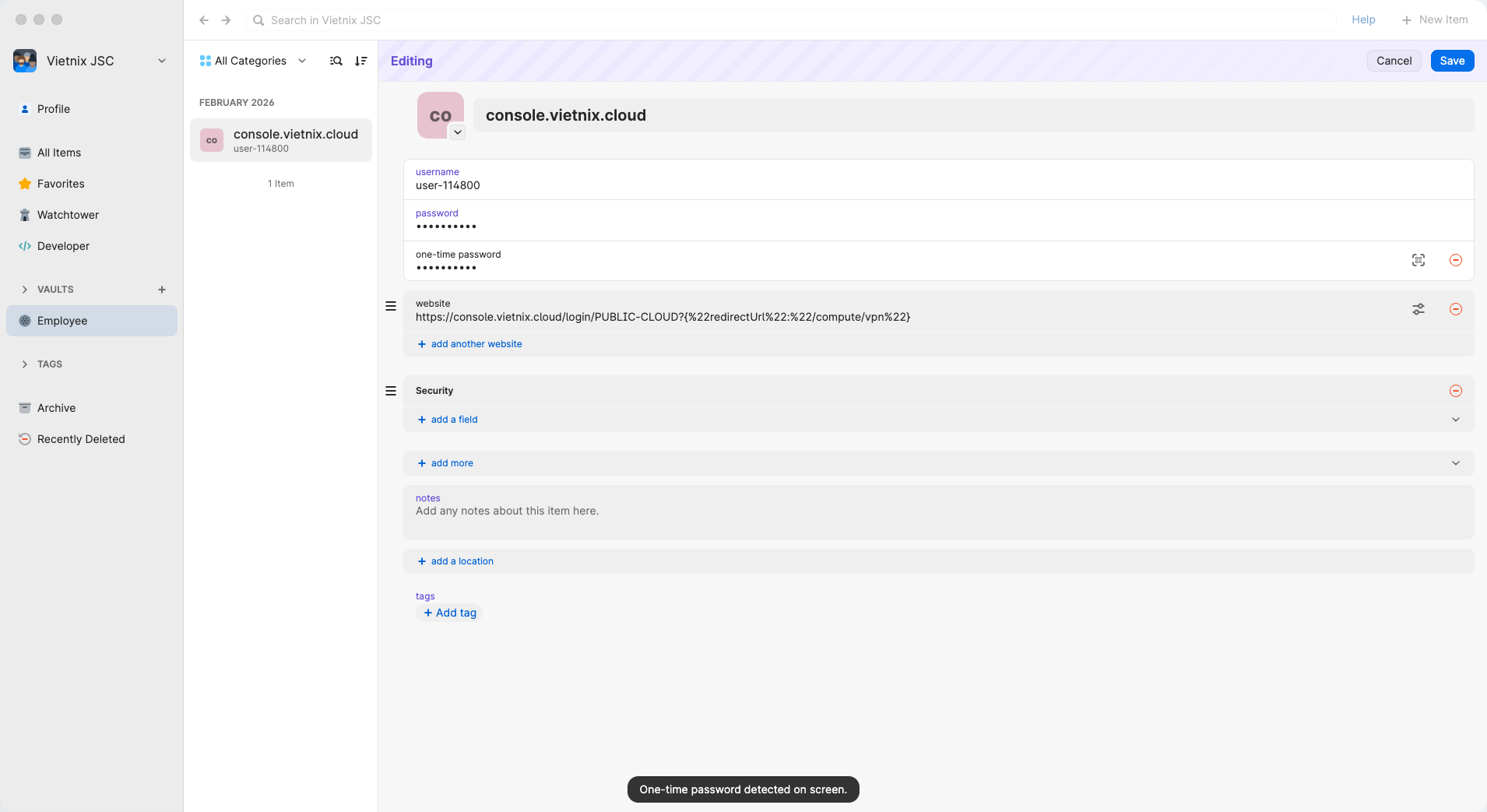
Once scanned, 1Password will immediately start generating 6-digit codes that refresh every 30 seconds.
-
Click Save to store the changes.
-
Copy the current 6-digit code and enter it in the Vietnix Cloud Console to complete verification.
Method B: Using the 1Password Browser Extension
-
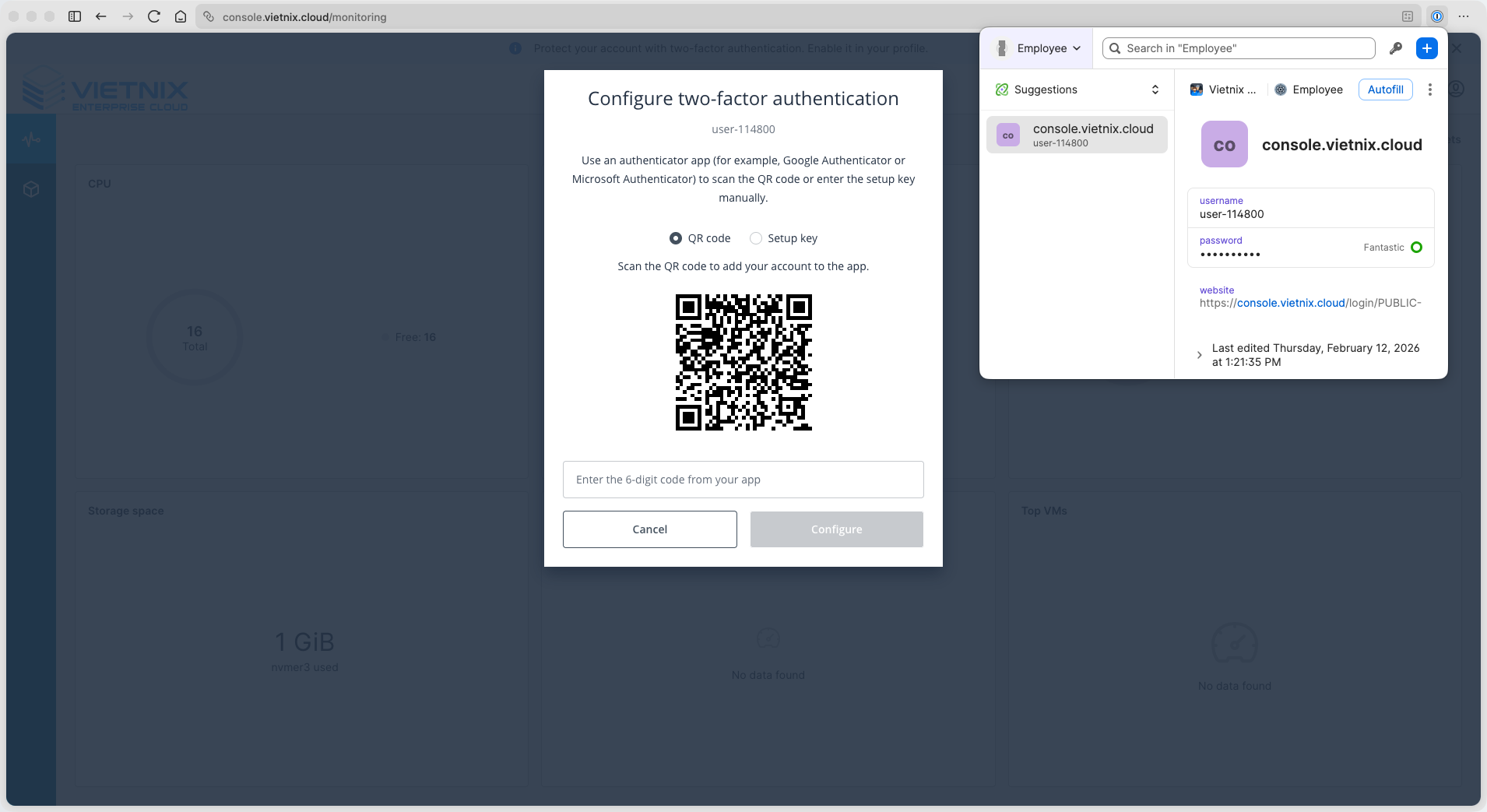
Click the 1Password extension icon in your browser toolbar.
-
Find your Vietnix Cloud login entry. If it doesn't exist, click + to create a new login.
-
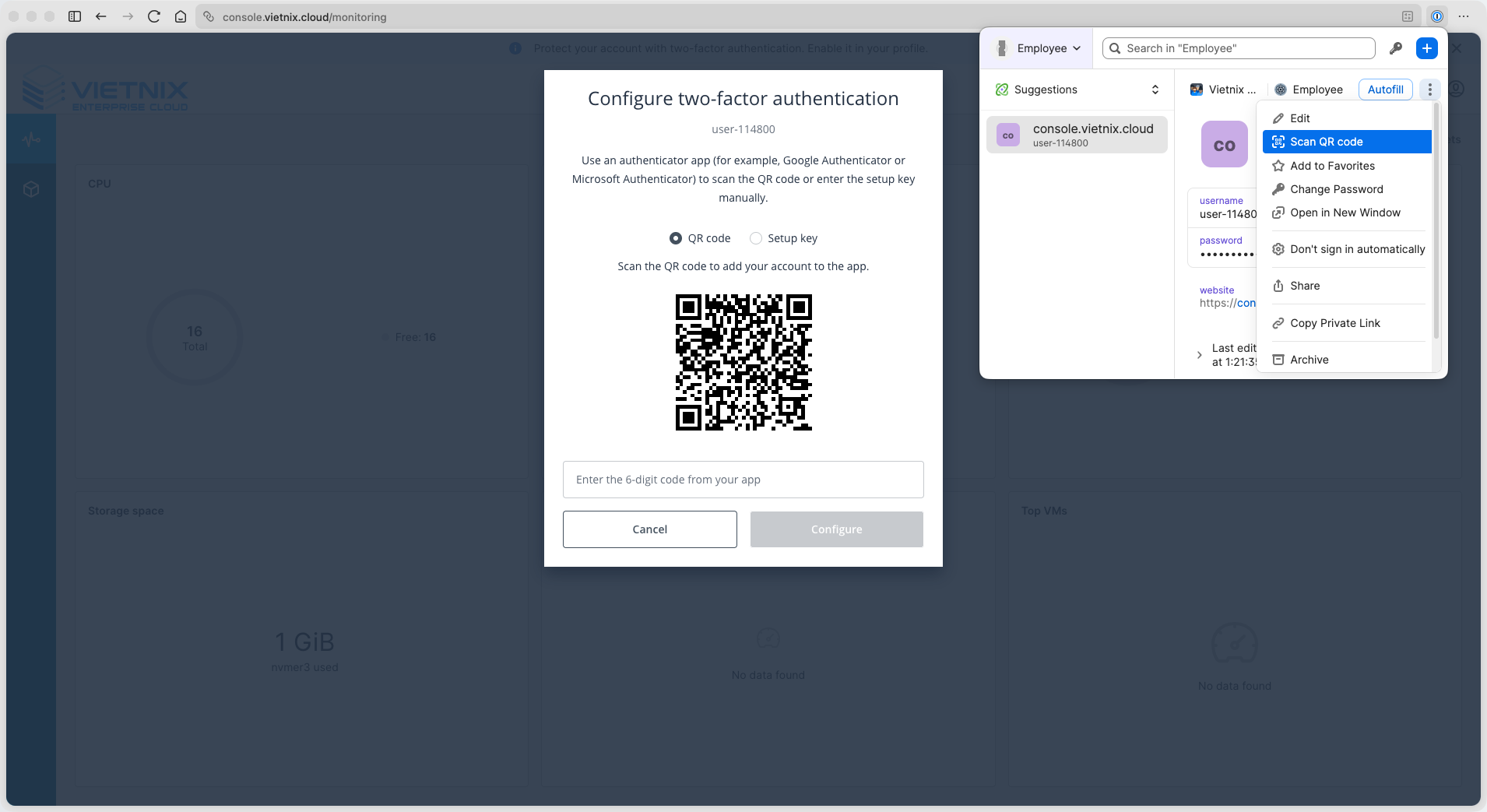
Click the three-dot menu (⋮) next to the entry, then select Scan QR Code.
-
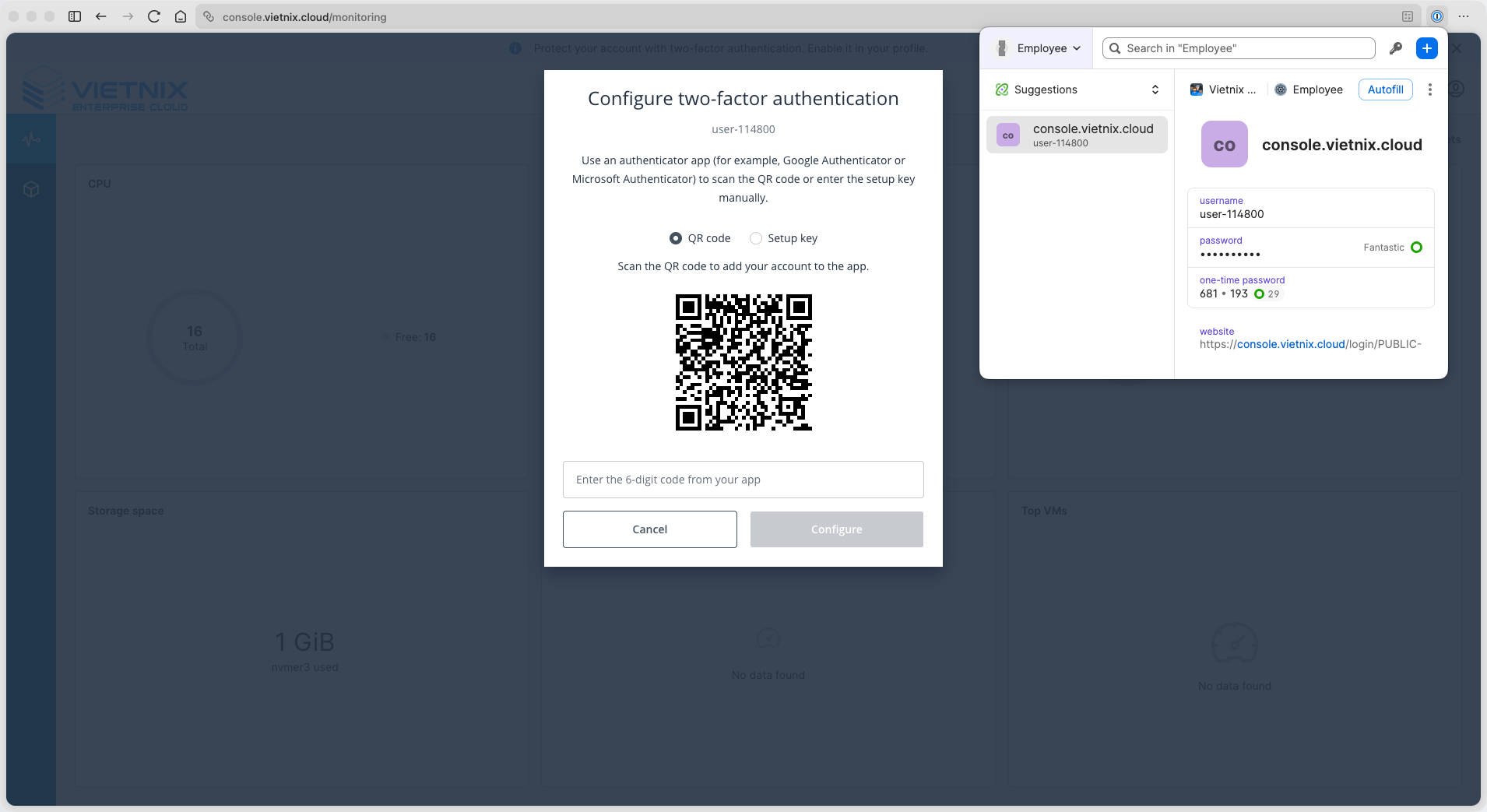
The extension will scan the QR code displayed on the Vietnix Cloud Console and automatically add the 2FA setup.
-
A 6-digit code will be generated immediately.
-
Copy the code and enter it in the Vietnix Cloud Console to complete verification.
Using 2FA After Setup
When logging in to Vietnix Cloud:
- Browser extension: 1Password auto-fills your credentials and the 2FA code in one click.
- Desktop/Mobile app: Open 1Password, find the Vietnix Cloud entry, and copy the current 6-digit code.