Upload Custom VM Image
This page explains how to upload images to the Images section. Supported image formats: .iso, .img, .qcow2, .raw.
Prerequisites
- An active Vietnix Cloud account
- A project with sufficient resources
- A VM image file in one of the supported formats:
.iso,.img,.qcow2, or.raw
Step to upload an image
-
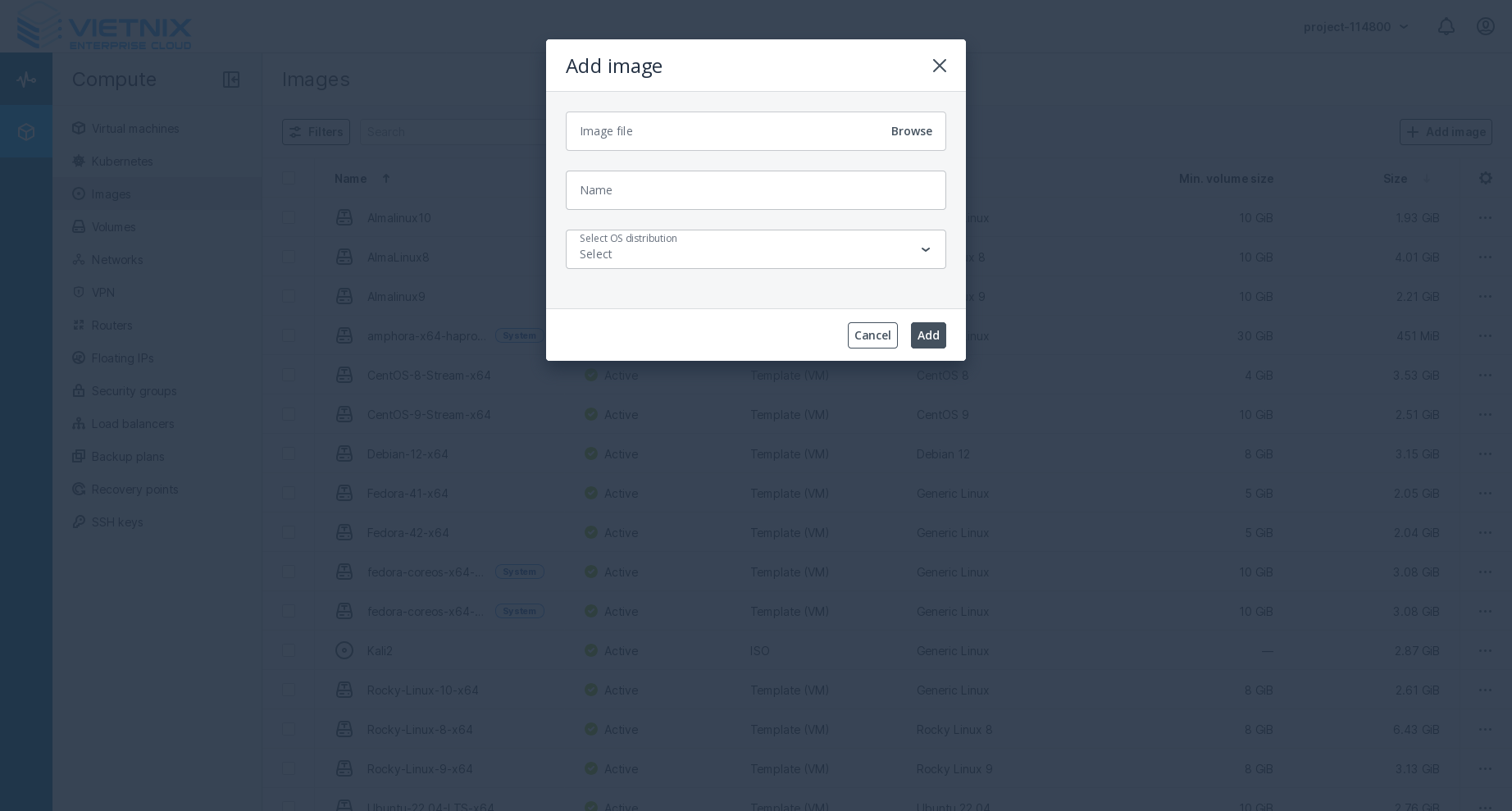
Go to Compute > Images and click Add image.
-
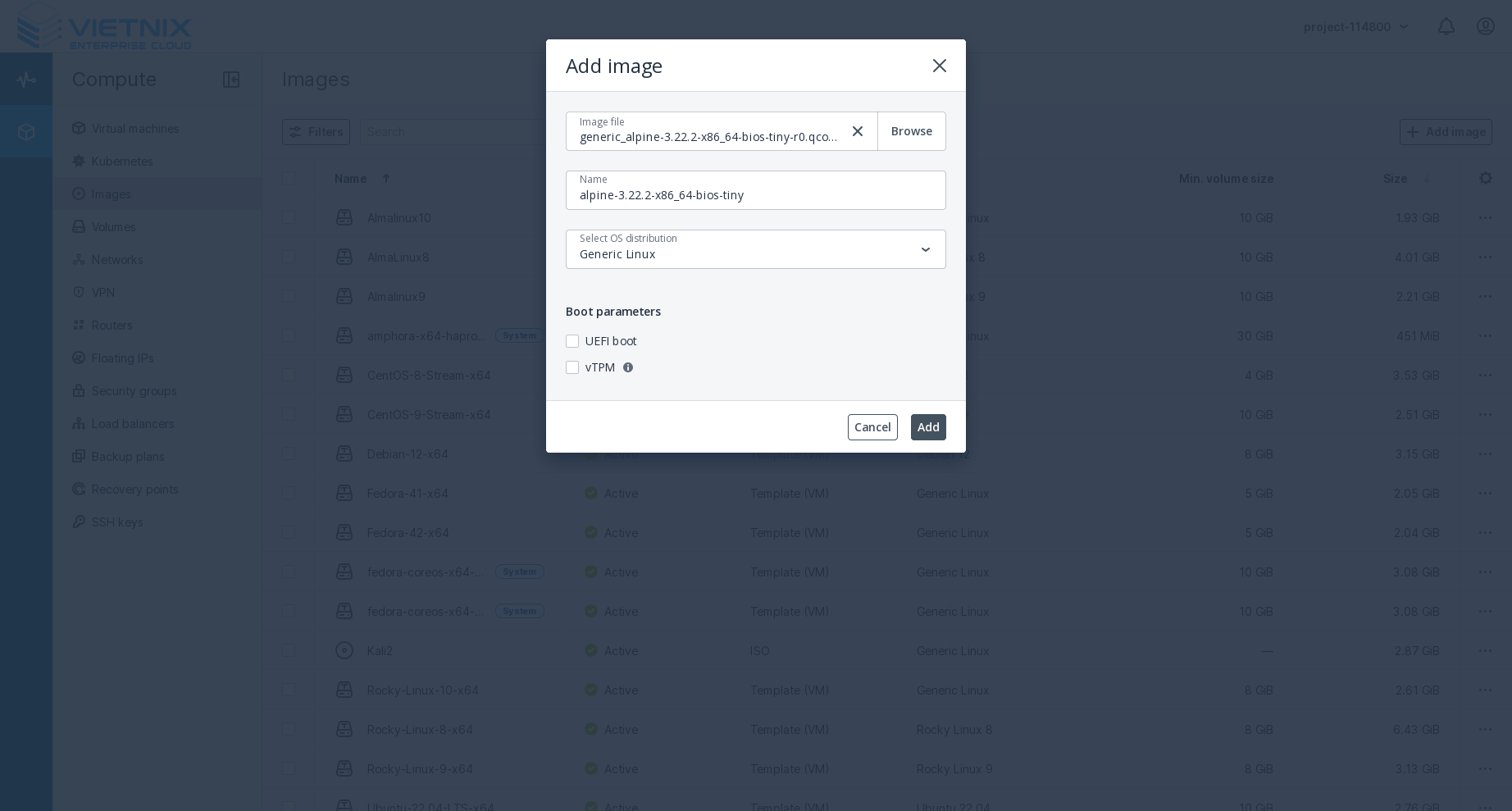
In the Add image window, do the following:
- Click Browse and select a file in one of the supported formats:
.iso,.img,.qcow2,.raw. - Specify an image Name. This name will be shown when selecting the image to create VMs.
- Select the correct OS type from the drop-down list.
The OS type affects VM parameters such as hypervisor settings. VMs created from an image with an incorrect OS type may not work correctly (for example, they may crash).
- Click Browse and select a file in one of the supported formats:
-
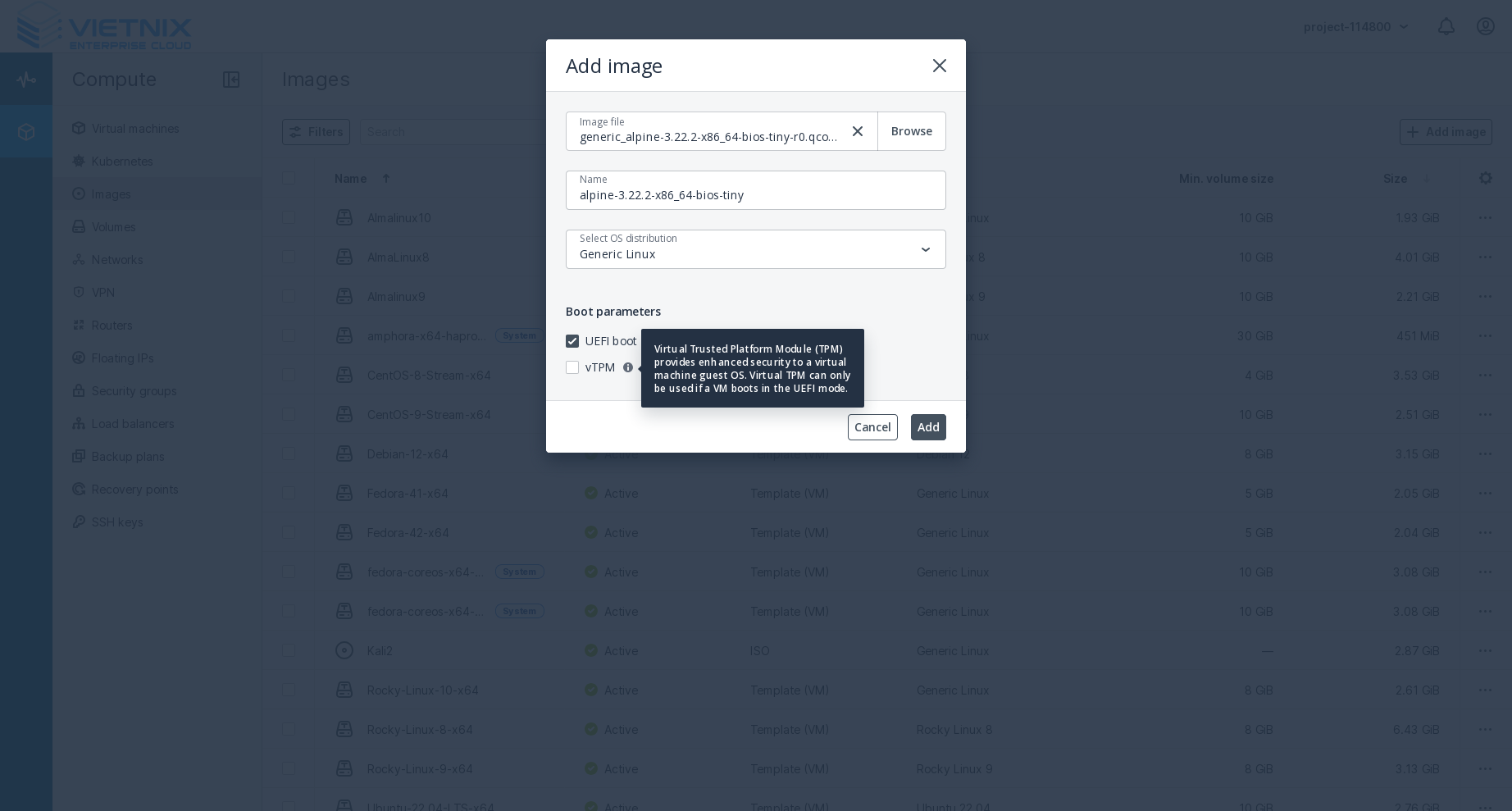
For images in the QCOW2, RAW, or IMG formats you can configure additional boot/security options:
- UEFI boot — mark the image as UEFI bootable.
- vTPM — enable a virtual Trusted Platform Module (vTPM) to provide enhanced security to the guest OS. Enabling vTPM also enables UEFI boot because vTPM requires UEFI mode.
Note: These parameters cannot be changed after the image is uploaded. They will be inherited by all VMs and volumes provisioned from the image.
-
Click Add to start uploading the image. The upload progress is shown in the bottom right corner of the UI.
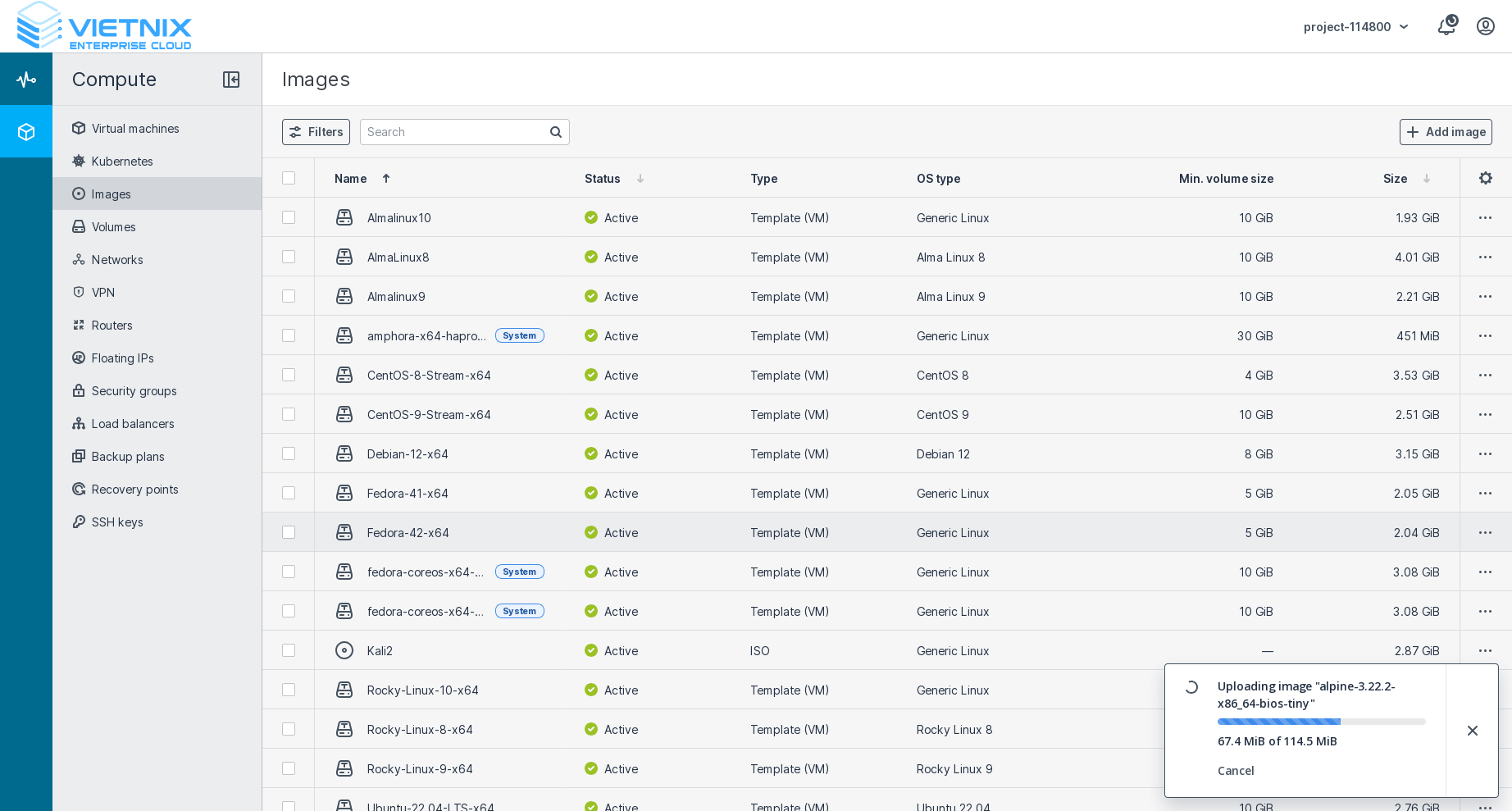
You can close or hide the Add image pop-up without interrupting the upload. The upload progress and final status will be available in the notification center.
Tips and considerations
- File size and upload time depend on your network speed and the image file size — larger images take longer to upload.
- Choose the correct OS type and boot settings before uploading — they cannot be changed later.
- If your image uses UEFI and vTPM, ensure VMs created from it use a hypervisor and flavor that support those features.
Troubleshooting
- Upload failed or stalled: check network connection and try again. If the UI reports a checksum or format error, verify the image file is not corrupted.
- Incorrect boot behavior: confirm that UEFI/vTPM settings match the guest OS requirements and that the selected OS type is correct.
- You don't see the Add image button: Please contact Vietnix Cloud support to ensure you have the necessary permissions to upload images.